
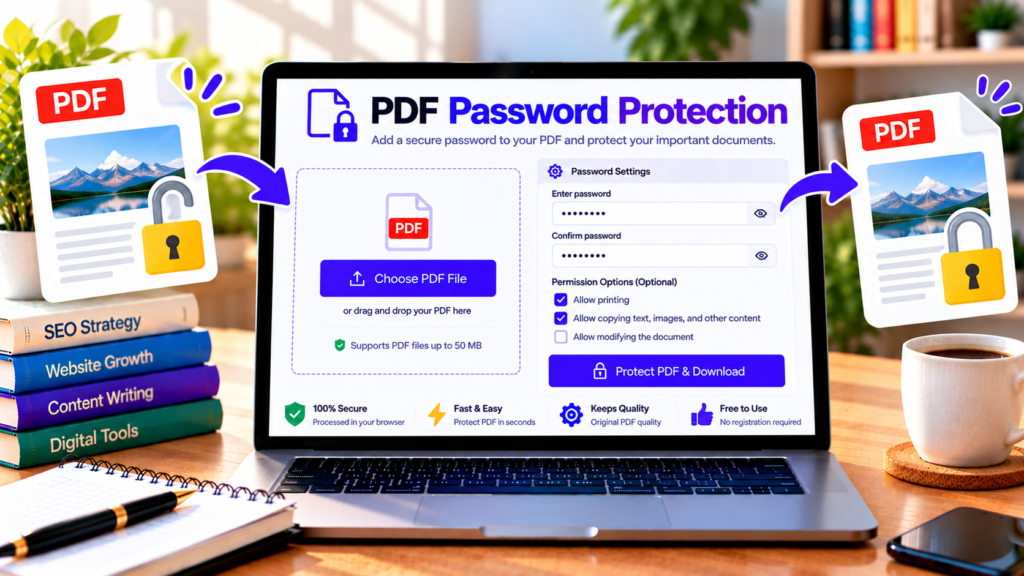
Need to share an important PDF without letting everyone open it? Our PDF Password Protection tool is designed to add password-based encryption to a PDF document. A password-protected PDF requires the recipient to enter the correct password before they can open and read the file.
Password protection can be useful for business reports, financial documents, personal records, contracts, and other files that should not be accessible to everyone. This tool uses an AES-256 encryption workflow when its browser-based encryption engine loads successfully.
Free PDF Password Protection
Protect your PDF with a password securely in your browser using AES-256 encryption.
Choose a file or drag and drop it here.
PDF only · Maximum file size: 50 MB
Use a strong, unique password. The tool cannot recover it if you lose it.
These permission flags are advisory in standard PDF readers.
Password encryption runs 100% locally in your browser. Your files never leave your device.
How to Password Protect a PDF
Follow these steps to protect your document:
- Upload your PDF: Choose a PDF file from your device.
- Enter a password: Create a strong password that is difficult to guess.
- Confirm your password: Enter the same password again to avoid typing mistakes.
- Choose permissions: Select whether printing, copying, and modifications should be allowed by compatible PDF readers.
- Protect your PDF: Start the encryption process and wait for it to finish.
- Download and verify: Save the protected PDF and test it in a PDF reader to confirm that it asks for the password.
Keep a secure record of your password. If you lose it, you may not be able to recover the protected document.
Features of Our PDF Password Protection Tool
Password-based document access
A user password protects the PDF from being opened without the correct password. This is different from simply adding a lock icon or a text label to a document: real password protection requires PDF encryption.
AES-256 encryption
AES-256 is a widely used encryption standard. The tool is designed to use 256-bit AES encryption through its PDF processing engine. Actual protection depends on successful encryption, the strength of your password, and compatible PDF software.
Optional document permissions
The tool includes settings for printing, copying content, and modifying the document. These permissions may be respected by common PDF readers, but they are not a replacement for the password required to open the file. Some software may handle permission restrictions differently.
Browser-based processing
The tool is designed to process the file within your browser using WebAssembly rather than sending the PDF to a dedicated processing server. A compatible browser and successful loading of the encryption library are required.
Simple download workflow
After processing, download the encrypted PDF and keep your original file until you have verified that the protected version opens correctly with the password.
Why Should You Protect a PDF with a Password?
PDF password protection can help reduce unauthorized access when documents are shared by email, messaging apps, or other file-sharing services. It is useful for private reports, draft contracts, business proposals, personal records, and other documents that should not be openly accessible.
For sensitive files, use a strong, unique password and share it through a separate communication channel from the PDF whenever possible. This reduces the risk of someone obtaining both the document and its password from the same message.
How to Choose a Strong PDF Password
Avoid easy-to-guess passwords such as a name, birth date, or a short sequence of numbers. Use a long, unique password or passphrase that is difficult to predict. A password manager can help you store it securely.
Do not reuse an important password across multiple services or documents. If you are protecting a critical file, verify that the encrypted PDF opens correctly before deleting or replacing the original.
Is PDF Password Protection Completely Secure?
No tool can guarantee complete security in every situation. Encryption can protect the contents of a PDF from being opened without the password, but security still depends on password strength, how the password is shared, the device used, and the software handling the document.
Permission settings such as disabling printing or copying may not be enforced by every PDF application. If a document contains highly sensitive information, follow your organization’s security policies and use trusted software and secure sharing practices.
Frequently Asked Questions
Does the PDF require a password to open?
When user-password encryption is applied successfully, the PDF should request the password in a compatible PDF reader. Always test the downloaded file.
What happens if I forget the password?
Password recovery may not be possible. Keep the password in a secure password manager or another safe place.
Can I stop people from printing or copying the PDF?
The tool provides permission options, but enforcement depends on the PDF reader. These restrictions are not a substitute for encryption.
Is my PDF uploaded to a server?
This tool is designed for browser-based processing. The encryption library must load successfully, and you should verify your site’s implementation and network behavior before relying on privacy claims for confidential documents.
Is the PDF Password Protection tool free?
The tool is offered free on this page, subject to the 50 MB file-size limit, browser compatibility, and successful loading of its encryption engine.
Conclusion
The PDF Password Protection tool provides a convenient way to create password-encrypted PDF files in your browser. Upload your document, set and confirm a strong password, choose the available permissions, and download the protected copy. Always verify the result and store your password safely before sharing the file.
Helpful PDF Security Resources
- PDFStudio Project – Explore browser-based PDF encryption and document tools.
- QPDF Encryption Documentation – Learn how PDF password encryption and permissions work.
- Adobe: How to Password Protect a PDF – Read about password protection options for PDF documents.