
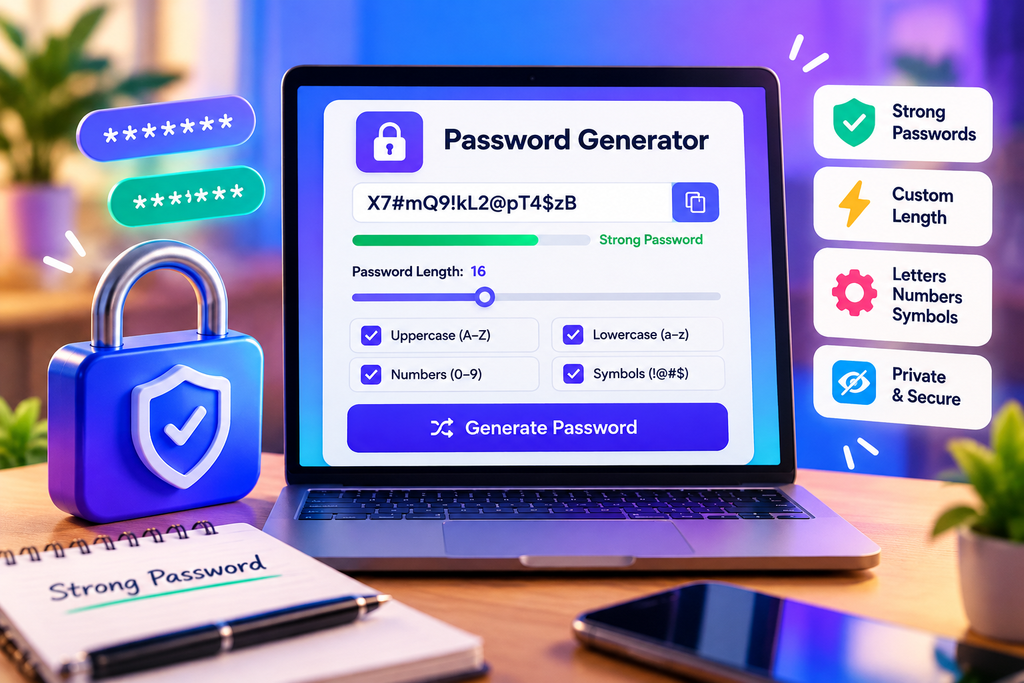
Protecting your online accounts starts with creating strong, unique passwords. Our free Password Generator helps you create random passwords using uppercase letters, lowercase letters, numbers, and symbols. Choose your preferred password length, customize the available options, and generate a password in seconds.
Whether you need a password for email, social media, online shopping, work accounts, or other online services, this tool provides a simple way to create a password without relying on predictable words or personal information.
Free Password Generator
Create a random password with your preferred length and character options.
Choose your options and generate a password.
How to Use the Password Generator
Creating a password with this online tool is straightforward.
- Choose the password length: Select a length between 8 and 64 characters.
- Select character types: Choose uppercase letters, lowercase letters, numbers, and symbols.
- Generate a password: Click the Generate Password button to create a random password.
- Copy the result: Use the Copy button to copy the generated password.
- Store it securely: Save the password in a trusted password manager rather than leaving it in a visible document.
For important accounts, consider using a long, unique password. You can generate another password whenever you need a different one.
Password Generator Features
Our free Password Generator includes several options to help you customize your password.
- Custom password length: Choose a length between 8 and 64 characters.
- Uppercase letters: Include capital letters from A to Z.
- Lowercase letters: Include small letters from a to z.
- Numbers: Add digits from 0 to 9.
- Symbols: Include supported special characters for additional variety.
- One-click copying: Copy the generated password using the Copy button.
- Browser-based generation: The tool uses the browser’s Web Crypto API to generate random values.
- Mobile-friendly design: Use the generator on supported desktop and mobile browsers.
You can choose the character options that suit the website or service where you need to use the password.
What Makes a Strong Password?
A strong password should be difficult to guess and different for every account. Password length is especially important because longer, randomly generated passwords generally offer better resistance to guessing than short or predictable ones.
Avoid using your name, birthday, phone number, common words, keyboard patterns, or predictable sequences. Information that other people can easily discover about you should not form the basis of your password.
It is also important to avoid reusing passwords. If one website experiences a data breach, a reused password could put your other accounts at risk. A unique password for every account helps limit the impact of an individual account compromise.
How Long Should Your Password Be?
The ideal password length depends on the account and the service’s requirements. Longer passwords generally provide more possible combinations, making them harder to guess when generated randomly.
This tool lets you select a password length from 8 to 64 characters. Where a service supports longer passwords, using a longer random password is often a sensible choice. Always check the service’s maximum length and supported characters before creating a password for that account.
For important accounts, prioritize a long, unique password and enable multifactor authentication whenever available.
Are Generated Passwords Stored?
This tool generates passwords in your browser and does not intentionally send them to a server or save them in a database. Password generation uses the browser’s Web Crypto API, and the tool is designed to generate passwords locally.
However, no website can guarantee the security of your entire device or browser environment. Browser extensions, malware, shared devices, clipboard history, or screen recording may expose sensitive information.
For better protection, use an updated browser on a trusted device. Avoid generating or copying passwords on public computers, and do not share your passwords through email or messaging services.
Why Use a Password Manager?
Remembering a different, strong password for every online account can be difficult. A reputable password manager can generate, store, and fill unique passwords for your accounts.
Instead of using one memorable password everywhere, you can use a password manager to maintain separate credentials for email, banking, shopping, social media, and other services. Protect the password manager itself with a strong master password and multifactor authentication if supported.
Frequently Asked Questions
Is this Password Generator free?
Yes. You can use the generator to create random passwords without paying a fee.
Can I choose the password length?
Yes. Select a length between 8 and 64 characters using the length control.
Can I include numbers and symbols?
Yes. You can enable or disable uppercase letters, lowercase letters, numbers, and symbols before generating a password. Selecting at least one character type is required.
Is the generated password random?
The tool uses the browser’s Web Crypto API for secure random values. Password generation requires a browser that supports this API.
Should I use the same password for several accounts?
No. Use a unique password for each account. Reusing passwords can increase the risk that a breach on one service affects other accounts.
Is a longer password always better?
Length is an important factor, but randomness and uniqueness also matter. A long, randomly generated password is generally preferable to a short, predictable one.
Create Your Password
Use the Password Generator above to create a random password with your preferred settings. Choose a suitable length, select the character types you need, and copy the result securely.
For stronger account protection, use unique passwords, store them in a trusted password manager, keep your devices updated, and enable multifactor authentication whenever possible.
Trusted Password Security Resources
Learn more about creating and managing strong passwords from these trusted security resources.
- NIST – Multi-Factor Authentication — Learn how an additional authentication method can help protect your accounts.
- CISA – Use Strong Passwords — Explore practical advice for creating and managing stronger passwords.
- Google Account Help – Create a Strong Password — Review Google’s guidance for protecting your account.
Explore More Free Tools
Discover more useful online tools for your everyday tasks.
Explore All Tools →