
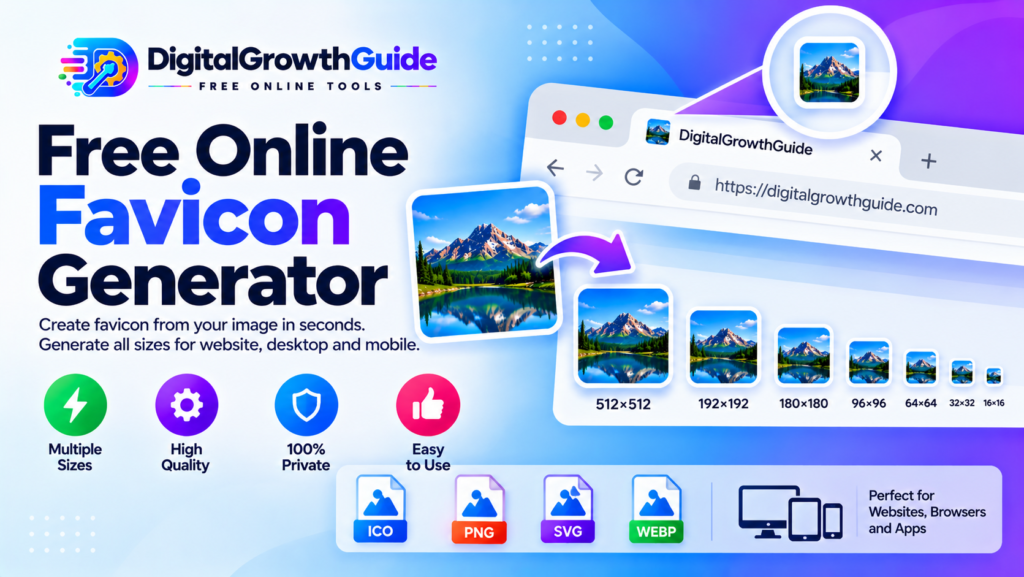
A favicon is the small icon displayed beside a website name in a browser tab, bookmark, or other browser interface. A recognizable favicon helps visitors identify your website when they have several tabs open. Our free Favicon Generator helps you turn an existing logo or image into square PNG icons in several useful sizes.
Upload an image, choose how it should fit inside a square, preview the generated icons, and download the PNG files directly to your device. No additional image-editing software is required.
Free Favicon Generator
Turn your image into a square PNG favicon in your browser. Preview your icon and download popular sizes for your website.
Upload your logo or image
For best results, choose a square image with a clear, simple design.
PNG, JPG, WEBP and other browser-supported image formats · Max 15 MBOriginal image
Favicon previews
Download each PNG size you need.
Your image is processed in your browser and is not uploaded to an external conversion server.
How to Use the Favicon Generator
Creating favicon PNG files is straightforward:
- Upload your image: Choose a logo, symbol, or image from your device.
- Choose the image fit: Fit the complete image inside the square or fill the square by cropping the edges.
- Select a background: Keep transparent areas transparent, or use a white or black background.
- Generate icons: Create PNG versions in the available sizes.
- Download your files: Save the sizes required by your website or application.
For the best result, start with a clear square image and a simple design that remains recognizable when reduced to a small size.
What Is a Favicon?
A favicon is a small graphic associated with a website. Browsers can display it in tabs, bookmarks, history interfaces, and other locations. Websites may also use different icon files for particular platforms or contexts.
A favicon often uses a simplified version of a brand logo, such as a distinctive letter, geometric symbol, or compact graphic. Fine details and long text can become difficult to recognize at small sizes.
Which Favicon Size Should You Use?
Different platforms and browser contexts can use different icon sizes. Commonly useful PNG dimensions include:
- 16 × 16 pixels: A small icon size commonly associated with browser tabs.
- 32 × 32 pixels: A larger browser icon size.
- 48 × 48 pixels: Useful for some desktop and application contexts.
- 180 × 180 pixels: Commonly used for Apple touch icon workflows.
- 192 × 192 pixels: Often used for Android-related web app icons.
- 512 × 512 pixels: A useful high-resolution source for supported icon workflows.
These files do not automatically replace every icon declaration required by a website. Check the requirements of your browser, platform, or web app before publishing them.
Tips for Creating a Clear Favicon
Start with a square image
A square source image is usually easier to adapt to favicon dimensions. If your source image is rectangular, the fit option lets you preserve the entire image with padding or fill the square by cropping some edges.
Keep the design simple
Use a recognizable symbol and sufficient contrast. Avoid small lettering, complex illustrations, and fine details that may disappear when the image is displayed at 16 × 16 pixels.
Check transparency and backgrounds
PNG supports transparent pixels. If your logo includes transparency, you can preserve it or choose a solid white or black background. Review the result against both light and dark browser interfaces.
Preview small sizes
A logo that looks clear at 512 × 512 pixels may be difficult to identify at 16 × 16 pixels. Preview the smallest icon before using it on your website.
How to Add a Favicon to WordPress
After generating the PNG files, open your WordPress dashboard and go to Appearance → Customize → Site Identity, or the equivalent Site Icon setting available in your theme and WordPress version. Upload a suitable square image for the site icon and save the changes.
For a full custom favicon setup, place the required files in an appropriate location and configure the corresponding icon links in your site’s HTML head. Avoid adding duplicate or conflicting favicon declarations.
You can also explore our Image Format Converter and Image Resizer to prepare other website graphics.
Is This Favicon Generator Free and Private?
This tool is designed to process images locally in your browser using JavaScript and the HTML Canvas API. In this implementation, your selected image is not uploaded to an external conversion server.
For more technical details, see the MDN Canvas API documentation and the guide to HTMLCanvasElement.toBlob().
Frequently Asked Questions
Is a favicon the same as a logo?
Not exactly. A favicon is a small icon associated with your website, while a logo may be designed for larger spaces such as headers, marketing materials, or social media.
Can I use a transparent PNG favicon?
Yes. PNG supports transparency, and this generator can preserve transparent areas when the transparent background option is selected.
Does this tool create an ICO file?
No. This version generates PNG icons in multiple sizes. ICO and SVG export are not included.
Why is my favicon not showing in Google?
Google may take time to recrawl a website and update its favicon. Make sure your icon is accessible, configured correctly, and consistent with Google’s favicon guidance. Display in search results is not guaranteed.
Create Your Favicon Today
Upload your image, choose your preferred fit and background, generate the available PNG sizes, and download the icons you need. A simple, recognizable favicon can help give your website a more consistent identity across browser interfaces.
Helpful Favicon Resources
- MDN Canvas API – Browser-based image processing.
- MDN toBlob() – Export canvas content as PNG files.
- Google Favicon Guidelines – Requirements for favicons in Google Search.