
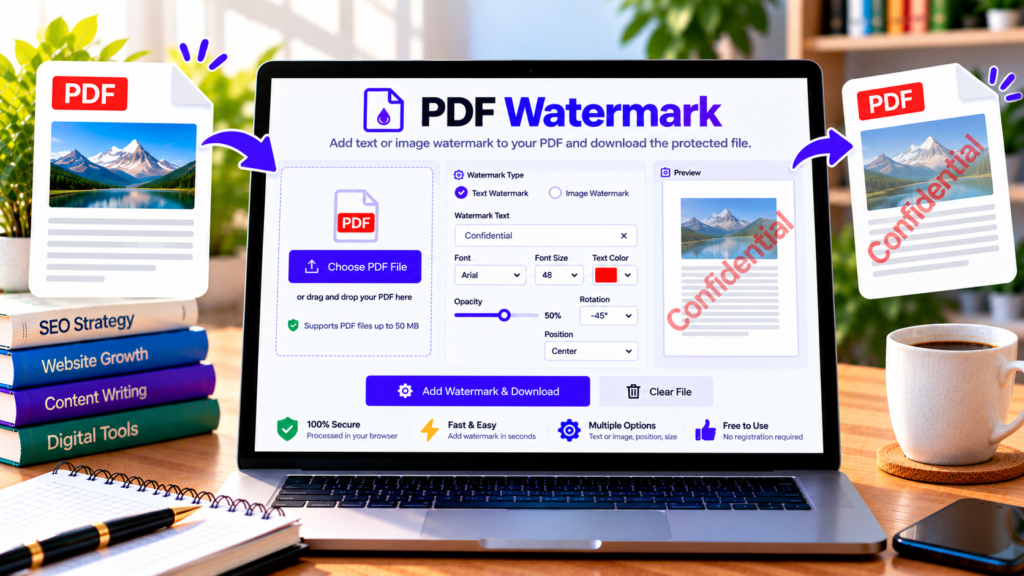
Want to label a document as confidential, mark a draft, or add a copyright notice before sharing a PDF? Our free PDF Watermark tool helps you add visible text watermarks to your document directly in your browser. Customize the watermark’s text, color, size, opacity, rotation, and position, then download the updated PDF.
A watermark can help identify a document’s status, discourage casual reuse, or make ownership information more visible. Whether you’re preparing business reports, educational materials, digital handouts, or sample documents, a clear watermark can make your PDF easier to identify.
Free PDF Watermark Tool
Add a text watermark to your PDF and download the updated document.
Choose a PDF file or drag and drop it here.
PDF only · Maximum file size: 50 MB
Examples: Confidential, Draft, Sample, or Copyright © Your Name.
Examples: 1-5, 8, 10-12. Empty means all pages.
Repeated text is placed diagonally at multiple locations.
This tool adds a visible text watermark. It does not encrypt the PDF or prevent copying, screenshots, or removal by other software.
How to Add a Watermark to a PDF
Follow these steps to watermark your PDF:
- Upload your PDF: Choose a PDF file from your device.
- Enter watermark text: Type a label such as Confidential, Draft, Sample, or Copyright © Your Name.
- Select the pages: Leave the page selection empty to watermark all pages, or specify individual pages and ranges.
- Customize the appearance: Choose the font size, color, opacity, rotation, and position.
- Choose repeat mode if needed: Repeat the watermark at multiple locations across each selected page.
- Create and download: Click the watermark button and download the updated PDF.
Open the downloaded file to confirm that the watermark is readable and does not cover important content.
Features of Our PDF Watermark Tool
Add custom text watermarks
Use your own text to label documents for different purposes. For example, use “Confidential” for internal reports, “Draft” for documents under review, or a copyright notice for original materials.
Customize color, size, and opacity
A watermark should be visible without making the main document difficult to read. Adjust the text color, font size, and opacity to find an appropriate balance. A lighter watermark often works well for documents that need to remain easy to read.
Choose the watermark position
Place the watermark in the center, at the top, or near the bottom of the page. You can also select left, center, or right alignment for the available positions.
Rotate the watermark
Diagonal watermarks are commonly used for labels such as “Draft” and “Confidential.” You can select a rotation angle to suit the document’s layout.
Watermark selected pages
You do not always need a watermark on every page. Enter page numbers or ranges to apply it only where required. For example, 1-3, 6 selects pages 1, 2, 3, and 6.
Repeat the watermark across a page
The repeat option places multiple instances of your text watermark across each selected page. This can make the label more noticeable, but you should check that the repeated text does not obstruct important content.
When Should You Use a PDF Watermark?
Watermarks can be useful for business reports, draft proposals, internal documents, educational resources, sample downloads, and materials shared for review. They can also display copyright notices or identify the owner of a document.
For professional results, keep the text short, choose a readable color, and avoid placing the watermark over essential information. If you are adding a copyright notice, make sure the wording accurately reflects your rights to the content.
Does a PDF Watermark Protect a Document?
A visible watermark can communicate ownership or document status and may discourage casual misuse. However, it is not the same as encryption, access control, or digital rights management. A watermark can sometimes be removed or obscured using PDF editing software.
If your document contains sensitive information, consider appropriate access restrictions and secure sharing methods. Do not rely on a watermark alone to protect confidential data.
Is It Safe to Add a Watermark Online?
This tool is designed to process the PDF in your browser instead of uploading it to a dedicated PDF processing server. This can reduce the need to transmit your document elsewhere, although the website environment, browser, and third-party scripts also matter for privacy.
For sensitive files, use a trusted device and keep the original PDF until you have checked the updated version. Password-protected PDFs and some complex files may not be supported.
Frequently Asked Questions
Can I watermark only selected PDF pages?
Yes. Enter individual page numbers or ranges in the page selection field. Leave the field empty to watermark every page.
Can I change the watermark color and transparency?
Yes. Choose a text color and adjust the opacity setting to make the watermark more subtle or more prominent.
Can I add a diagonal watermark?
Yes. Select a rotation angle from the available options.
Does this tool add an image or logo watermark?
This version supports text watermarks only. It does not currently provide image or logo watermark uploads.
Is the PDF Watermark tool free?
Yes. The tool is offered free on this page, subject to the 50 MB file-size limit and browser compatibility.
Conclusion
The free PDF Watermark tool provides a simple way to label PDF documents with custom text. Choose the pages, customize the watermark’s appearance, and download your updated file. Review the finished document before sharing it, and remember that a visible watermark does not replace encryption or other document security measures.
Helpful PDF Resources
- pdf-lib PDFPage Documentation – Learn how to draw text on PDF pages.
- Official pdf-lib Website – Explore tools for creating and modifying PDF documents.
- Adobe Acrobat: Add Watermarks to PDFs – Learn about watermarking PDF documents.