
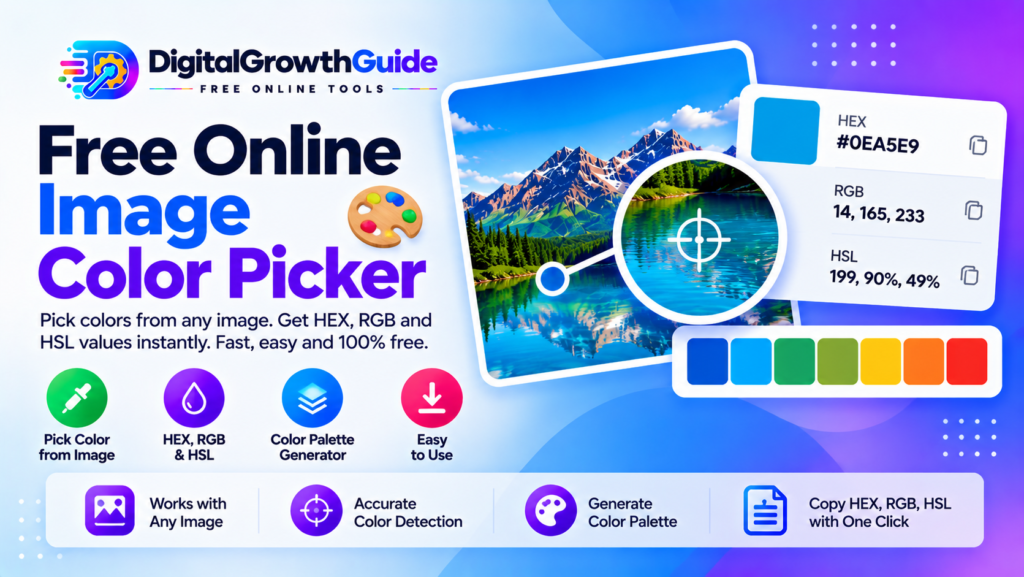
Need to find the exact color used in a photograph, logo, website screenshot, or design? Our free Image Color Picker helps you select a color directly from an image and view its HEX, RGB, and HSL values. Upload an image, click the area you want to inspect, and copy the color code for your design project.
This browser-based tool is useful for designers, developers, bloggers, students, and anyone who needs to identify colors from visual references.
Free Image Color Picker
Pick colors from an image, get HEX, RGB and HSL values, and build a useful color palette.
Upload an image
Choose a JPG, PNG, WebP or another browser-supported image.
Maximum file size: 15 MBClick or tap anywhere on your image to pick a color.
My Color Palette
🔒 Image processing happens in your browser. Your image is not uploaded to an external conversion server.
How to Use the Image Color Picker
Picking a color is simple:
- Upload an image: Select a supported image file from your device.
- Choose a pixel: Click or tap the part of the displayed image that contains the color you want.
- View the color codes: Check the HEX, RGB, and HSL values.
- Copy your values: Copy a color code and paste it into your design or development project.
- Build a palette: Add multiple selected colors to create a personal palette.
For the best experience, use a clear image and select a sufficiently large area of the color you want to identify.
Use a Color Picker From Image for Design Projects
A color picker from image tool helps you identify colors without manually guessing their values. This is useful when you want to match a color from a photograph, brand reference, illustration, or existing website design.
For example, you might sample a background color from a banner, choose a complementary shade for a button, or identify a color used in an infographic. You can then use the copied value in a graphics editor, website stylesheet, presentation, or design application.
Color sampling can be affected by image compression, lighting, shadows, transparency, and resizing. For that reason, a sampled color should be treated as the color of the displayed image pixel rather than necessarily the original design’s intended color.
What Are HEX, RGB and HSL Color Codes?
HEX color codes
A HEX color picker provides colors in hexadecimal notation, such as #315CF5. HEX values are widely used in CSS and website design to specify colors.
RGB color values
RGB represents red, green, and blue components. Each component typically ranges from 0 to 255. For example, rgb(49, 92, 245) represents a shade of blue.
HSL color values
HSL stands for hue, saturation, and lightness. Hue describes the color family, saturation describes its intensity, and lightness describes how light or dark it appears. HSL can be useful when creating variations of a selected color.
These formats represent the same basic color in different ways, making them useful for different design workflows.
Create a Palette With an Image Color Extractor
An image color extractor can help you collect several colors from a single image. This tool lets you select colors individually and add them to a palette.
A palette is helpful when designing website sections, choosing button colors, preparing social media graphics, or developing a consistent presentation theme. Instead of repeatedly sampling the same image, you can collect your preferred colors and copy their HEX codes together.
For more image editing, try our Image Cropper or use the Image Resizer to prepare graphics before sampling them.
Is This Image Color Picker Free and Private?
This tool is designed to process uploaded images locally in your browser. The implementation uses JavaScript and the HTML Canvas API to read pixel color values; it does not send your image to an external conversion server.
Very large images may be scaled down before display to keep the tool responsive. As a result, the selected color can differ slightly from a pixel in the original full-resolution image.
For technical details, see the MDN Canvas API documentation and the Canvas pixel data documentation.
You can also explore our Image Format Converter for other image-related tasks.
Frequently Asked Questions
What is an Image Color Picker?
An Image Color Picker lets you select a point in an image and view the corresponding color values, such as HEX, RGB, and HSL.
How do I use a color picker from image?
Upload your image, click or tap the desired area, and copy the displayed color code.
What does a HEX color picker do?
A HEX color picker provides a hexadecimal color code commonly used in CSS and digital design.
Can an image color extractor identify every original design color exactly?
Not always. Compression, resizing, lighting, transparency, and image editing can change the displayed pixel values.
Pick Your First Color Today
Upload an image, sample the colors you need, and copy the HEX, RGB, or HSL values for your next project. Use the palette feature to keep your selected colors together while you work.
Helpful Color Picker Resources
- MDN Canvas API – Learn about browser-based image processing.
- MDN getImageData() – Understand how canvas pixel data is read.
- MDN CSS Color Values – Learn about color values used in CSS.