
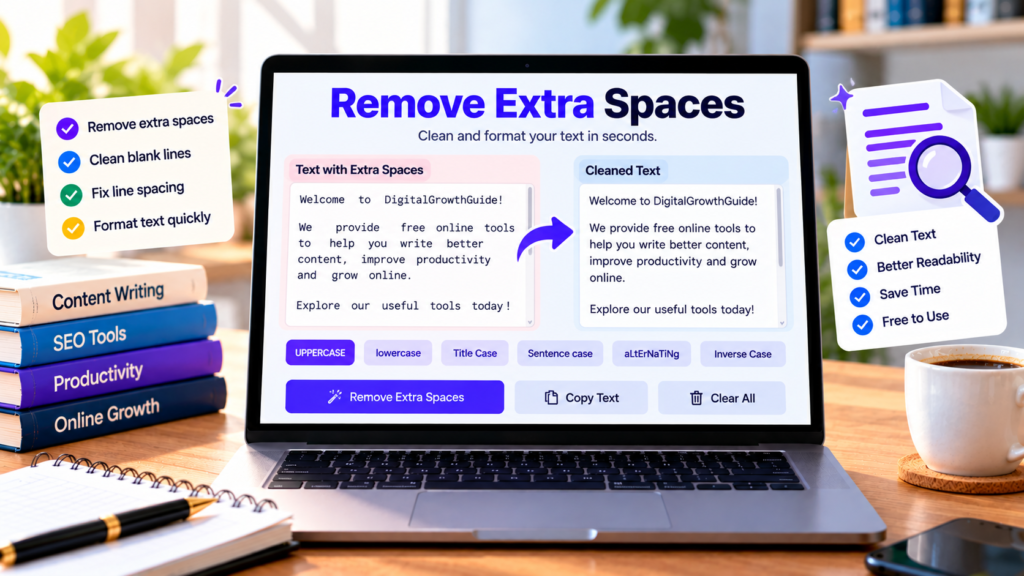
Unwanted spaces can make text look untidy and harder to read. Whether you are editing a blog post, cleaning copied content, preparing a document, or formatting text for a website, removing unnecessary spaces can save time. Our free remove extra spaces tool helps you clean text online with a few simple clicks.
Paste your text into the tool, select the cleanup options you need, and generate a cleaner version. You can then review the result and copy it into your preferred document or application.
Remove Extra Spaces from Text
Clean unwanted spaces and format your text in seconds.
Paste text and select Remove Extra Spaces to begin.
What Is an Extra Space Remover?
An extra space remover is an online text utility that helps eliminate unnecessary spaces and blank lines. Depending on the selected options, it can reduce repeated spaces, trim spaces at the beginning and end of lines, remove empty lines, and trim whitespace at the beginning and end of the complete text.
For example, text such as “Welcome to our website” can become “Welcome to our website” when repeated spaces are removed.
This is useful when content has been copied from documents, emails, spreadsheets, or other sources that contain inconsistent spacing.
How to Remove Extra Spaces Online
Using this remove extra spaces tool is straightforward:
- Paste or type your text into the input box.
- Choose whether to collapse repeated spaces and tabs.
- Select whether to trim the beginning and end of each line.
- Enable the option to remove empty lines if needed.
- Choose whether to trim whitespace around the entire text.
- Click Remove Extra Spaces and review the cleaned result.
- Use Copy Clean Text to copy the final version.
The tool also displays the original character count, cleaned character count, and the difference between them. This helps you see how much text was removed during cleanup.
Why Should You Remove Extra Spaces?
Improve readability: Consistent spacing makes paragraphs and sentences easier to read. Extra spaces can distract readers and make text look inconsistent.
Prepare content for publishing: Bloggers and website owners can clean text before adding it to pages, articles, and descriptions.
Clean copied text: Text copied from emails, documents, and other sources may contain repeated spaces or unnecessary blank lines. A space cleaner can help standardize the formatting.
Save editing time: Instead of searching through a long document manually, you can apply selected cleanup rules to a block of text.
Make text easier to reuse: Cleaned text can be copied into a content editor, document, form, or other application.
Understanding the Cleanup Options
Replace repeated spaces and tabs
This option reduces sequences of ordinary spaces and tabs to a single space. It is useful for text with inconsistent spacing between words.
Trim the beginning and end of each line
This option removes spaces and tabs at the start and end of each line while preserving the line breaks themselves.
Remove empty lines
Enable this setting to delete blank lines. It can make text more compact, but it may also remove paragraph separation. Review the output if paragraph structure matters.
Trim the beginning and end of the text
This option removes whitespace around the entire text block. It helps eliminate accidental spaces or line breaks before the first character and after the last character.
You can combine these settings to suit your text. The best choices depend on whether you want to preserve paragraphs, blank lines, or intentional formatting.
Does Removing Extra Spaces Affect Word Count?
Removing repeated spaces usually does not change the number of words in ordinary prose, but it changes the character count. Removing blank lines reduces the number of line breaks and may make the text shorter.
The result depends on the cleanup options you select. If you are preparing a document with strict formatting requirements, review the output before using it.
Is It Safe to Use an Online Space Cleaner?
This tool performs its text-cleaning operations in your browser, and its code does not intentionally send your text to a server. However, other website components, hosting features, or installed scripts may operate independently. Avoid pasting confidential information into any online tool unless you understand its privacy practices.
Frequently Asked Questions
Is the remove extra spaces tool free?
Yes. You can use the text-cleaning features on this page without paying for the tool.
Can I remove blank lines too?
Yes. Enable the Remove Empty Lines option before cleaning your text.
Does the tool change words or spelling?
No. Its purpose is to adjust spacing and blank lines, not rewrite or spell-check your content.
Can I use it on mobile?
Yes. The tool layout is designed to adapt to mobile and desktop screens.
Can I copy the cleaned text?
Yes. Select Copy Clean Text after cleaning your content. If clipboard access is unavailable, you can manually select and copy the result.
Conclusion
Our free online remove extra spaces tool helps you clean repeated spaces, trim line edges, and remove blank lines when needed. Choose the settings that suit your content, review the result, and copy your cleaned text. It is a simple way to make everyday text editing faster and more consistent.
Explore More Free Text Tools
Clean, format, and improve your text with these online tools.
Explore All Free Tools →