
Images are an important part of websites, social media posts, presentations, online stores, and everyday digital projects. Sometimes, a photo contains unnecessary background space or an unwanted object. Cropping helps you remove those areas and focus attention on the part of the image that matters most.
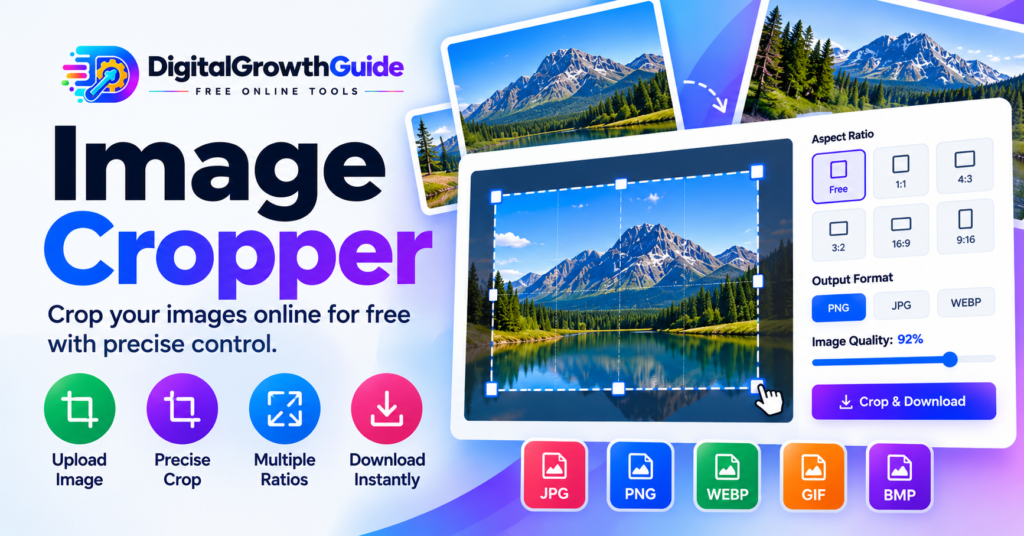
With the free Image Cropper online tool from DigitalGrowthGuide, you can select an image, adjust the crop area, choose an aspect ratio, preview the result, and download the cropped image. The tool works directly in your browser, so you can crop images without installing desktop software.
Free Image Cropper Online
Crop photos and pictures instantly right in your browser. Choose custom aspect ratios, preserve transparent backgrounds, adjust output quality, and export to PNG, JPG, or WEBP with zero server uploads.
Click to upload or drag and drop an image
How to Crop an Image Online in 4 Simple Steps
Upload Your Picture
Click the upload zone or drag and drop any PNG, JPG, WEBP, or GIF image directly from your computer or mobile device.
Adjust the Crop Area
Drag the selection rectangle to reposition it, or drag any of the 8 corner and edge handles to resize the crop zone.
Pick Aspect & Format
Lock your ratio to 1:1, 16:9, 9:16, 4:3, or 3:2, select your desired export format (PNG, JPG, WEBP), and tune the quality slider.
Download Instantly
Click “Crop & Download Image” to generate your cropped photo at native resolution. No watermarks, sign-ups, or delays.
Why Use DigitalGrowthGuide’s Image Cropper?
100% Client-Side Privacy
Your photos never touch an external server or cloud storage. All cropping happens strictly inside your web browser via the HTML5 Canvas API.
Standard Aspect Ratios
Easily format images for YouTube thumbnails (16:9), Instagram profiles (1:1), TikTok videos (9:16), or custom freeform dimensions.
Preserved Native Resolution
The cropping canvas extracts pixels directly from your original high-resolution photo file, eliminating fuzzy, downscaled exports.
Modern Web Formats
Export directly to Google-favored next-gen WEBP, transparent PNG, or lightweight JPG with interactive compression control.
The Complete Guide to Cropping Images for Modern Web Performance
In modern web publishing, visual assets drive reader engagement, enhance social sharing, and support commercial conversions. However, uncropped and improperly framed images often introduce unnecessary file bloat, disrupt responsive layouts, and obscure the primary subject of a photograph. Utilizing a reliable free image cropper online allows content creators, webmasters, and marketers to frame graphics with surgical accuracy while optimizing every asset for search engines and user experience.
Why Exact Aspect Ratios Matter Across Digital Platforms
An aspect ratio describes the proportional relationship between an image’s width and height. When an image is uploaded without matching the target platform’s display container, social platforms and content management systems frequently crop images automatically using blind center-weighted algorithms. This often cuts off crucial elements such as human faces, headlines, or brand marks.
With the DigitalGrowthGuide Image Cropper, you can lock your crop boundaries into standardized aspect ratios tailored for modern media:
- 1:1 (Square): The essential ratio for Instagram grid posts, team member avatars, Gravatars, and e-commerce product square thumbnails.
- 16:9 (Widescreen Landscape): The universal standard for YouTube thumbnails, desktop hero banners, Google Discover cards, and presentation slides.
- 9:16 (Vertical Story): The required format for full-screen mobile experiences, including TikTok, Instagram Reels, YouTube Shorts, and WhatsApp Statuses.
- 4:3 and 3:2 (Classic Photography): Traditional ratios favored by DSLR cameras, print media, editorial blog inserts, and portfolio galleries.
- Freeform: Gives you unrestricted control to remove unwanted borders, crop out distractions, or isolate custom banners.
Comparing Export Formats: PNG, JPG, and WEBP
Selecting the correct image format after cropping is critical for maintaining page speed and visual fidelity. Our tool lets you choose between three primary web standards:
| Format | Compression Type | Transparency | Recommended Use Case |
|---|---|---|---|
| PNG | Lossless | Full Alpha Support | Logos, UI screenshots, vector graphics, and images with transparent backgrounds. |
| JPG | Lossy | No (Fills White) | Photographs and complex real-world scenes where file size reduction is top priority. |
| WEBP | Lossy & Lossless | Full Alpha Support | Modern websites seeking 25–35% smaller file sizes than JPG without noticeable quality loss. |
Optimizing Images for Search Engines and Core Web Vitals
Cropping is the first fundamental step in effective technical image optimization. When you eliminate superfluous background space before serving an image, you dramatically reduce the raw byte weight transferred over the wire. According to official guidelines from Google Search Central Image SEO, delivering properly sized images directly improves Largest Contentful Paint (LCP) scores and enhances your crawl efficiency.
Once you have cropped your photo to the ideal framing, you can pair it with our companion Image Resizer to set specific maximum pixel dimensions for responsive breakpoints. If your workflows involve digital document distribution, tools like our PDF Compressor and PDF Text Extractor ensure your complete digital asset pipeline remains lightweight, accessible, and fast. For offline-to-online bridging, check out our free QR Code Generator.
How Browser-Based Processing Protects Your Data Privacy
Many online conversion utilities transmit your uploaded media files to remote web servers for manipulation. This creates potential security hazards when handling personal headshots, private documents, or unreleased promotional imagery.
Our Image Cropper operates through the standard MDN Canvas API and native client-side rendering. When you select an image, it is read into your browser’s local memory using an object URL. During the download step, the cropped coordinates are transferred to an offscreen canvas and rendered locally via MDN HTML Canvas toBlob. None of your graphic data leaves your local device, guaranteeing zero cloud storage retention and absolute privacy.
Whether you are preparing blog feature banners for DigitalGrowthGuide or refining social media graphics, clean cropping elevates your brand presentation while keeping your digital footprints safe and web pages blazing fast.
Frequently Asked Questions
Will cropping my image reduce its visual resolution or sharpness?
No. Our tool displays a responsive scaled preview on your screen for convenient editing, but when you click “Crop & Download Image”, the cropping mathematics are mapped directly back to the original source image’s native pixel matrix. Your final output maintains 100% of the original sensor clarity within the cropped boundaries.
Does this tool support cropping transparent PNG and WEBP graphics?
Yes. If you upload a transparent PNG or WEBP graphic and choose PNG or WEBP as your export format, the alpha channel is fully preserved. If you choose JPG as your export format, any transparent pixels are automatically and cleanly rendered over a solid white backdrop because the JPEG specification does not support alpha transparency.
Are my personal or business images uploaded to any remote server?
Not at all. DigitalGrowthGuide’s Image Cropper operates 100% client-side inside your web browser. Neither your original file nor your cropped output is ever transmitted, uploaded, or stored on external servers or cloud repositories.
Can I use this image cropper on my mobile phone or tablet?
Yes. The crop box and all 8 resize handles are built with full touch gesture support. You can drag the crop zone and pinch or drag handles smoothly on iOS and Android smartphones without accidental viewport scrolling.
What is the difference between image cropping and image resizing?
Cropping cuts away unwanted outer areas of an image to change its composition or aspect ratio without altering the scale of the retained content. Resizing scales the entire image (width and height) up or down without cutting off any visual elements. For best results, crop your photo first, then use our Image Resizer to set the target delivery dimensions.
What Is an Image Cropper?
An image cropper is a tool that removes unwanted outer portions of a picture. Instead of changing the entire image, cropping lets you keep a selected rectangular area.
For example, you can crop a landscape photograph to focus on a mountain, remove empty space around a product photo, or create a square profile picture from a wider image.
Cropping is different from resizing. Cropping removes parts of the image, while resizing changes the dimensions of the image. Depending on your project, you may need one or both operations.
How to Crop an Image Online
Follow these simple steps to crop a picture with the DigitalGrowthGuide Image Cropper.
- Upload your image: Select an image file from your device using the upload control.
- Choose an aspect ratio: Use free crop for flexible dimensions or select a preset such as 1:1, 4:3, 3:2, 16:9, or 9:16.
- Adjust the crop area: Drag inside the selected area to reposition it. Drag the corners or edges to change its size.
- Select an output format: Choose PNG, JPG, or WEBP according to your needs.
- Adjust image quality: For JPG and WEBP, select a quality level using the slider.
- Download your result: Select Crop & Download Image to save the cropped file to your device.
Always open the downloaded image to check that the subject, framing, and dimensions meet your requirements.
Common Image Aspect Ratios
Different platforms and projects may need different image shapes. These presets provide a useful starting point.
- 1:1 square: Useful for profile pictures, product thumbnails, and square graphics.
- 4:3 standard: Suitable for many general-purpose photographs and presentations.
- 3:2 photo: A common shape for traditional photographs.
- 16:9 widescreen: Often used for video thumbnails, banners, and presentation graphics.
- 9:16 portrait: Useful for vertical content designed for mobile screens.
Always check the image dimensions recommended by the platform where you plan to publish your image. A preset ratio does not guarantee that an image will meet every platform’s size requirements.
Which Image Format Should You Choose?
PNG is useful for graphics, screenshots, and images where lossless quality is important. JPG is often suitable for photographs because it can produce relatively small files. WEBP supports modern web image delivery and can offer efficient compression.
The best format depends on the image and its intended use. Repeatedly saving an image in a lossy format can reduce quality, so keep an original copy when possible.
Benefits of Cropping Images Online
An online image cropper can simplify everyday editing tasks. You can remove distracting edges, improve composition, prepare consistent product photos, and create images for blog posts or social media.
Because this tool uses your browser’s Canvas API, image processing is designed to happen locally on your device. Your selected image is not intentionally uploaded to a server by this code. However, your hosting platform, browser extensions, or other website scripts may have separate data practices.
Tips for Better Cropped Images
Keep the main subject clearly visible and leave enough space around it when needed. Avoid cropping important details too close to the edge. Use the appropriate aspect ratio before downloading, and choose a format that fits your purpose.
For large images, processing may take longer and use more device memory. If a file fails to load, try a smaller image or convert it to a supported format first.
Explore More Free Online Tools
DigitalGrowthGuide offers other tools that can support your image workflow. Try the Image Resizer to change image dimensions, explore the Image Converter if available to change file formats, or visit the DigitalGrowthGuide homepage to discover more online utilities.
For technical background, read the MDN Canvas API documentation and Google’s image SEO best practices.
Frequently Asked Questions
Is this Image Cropper free?
The tool is designed to be available without a paid subscription. Your website owner controls its availability and any usage limits.
Can I crop images on my phone?
Yes, if your mobile browser supports the required file and Canvas features. The layout is responsive, although performance depends on your device.
Does cropping reduce image quality?
Cropping alone does not necessarily reduce the quality of the retained pixels. Output format, compression settings, and image scaling can affect the final result.
Which files can I download?
The tool provides PNG, JPG, and WEBP export options. The browser must support the selected output format.
Use DigitalGrowthGuide’s free Image Cropper to frame your photos more precisely and prepare images for your next digital project.