
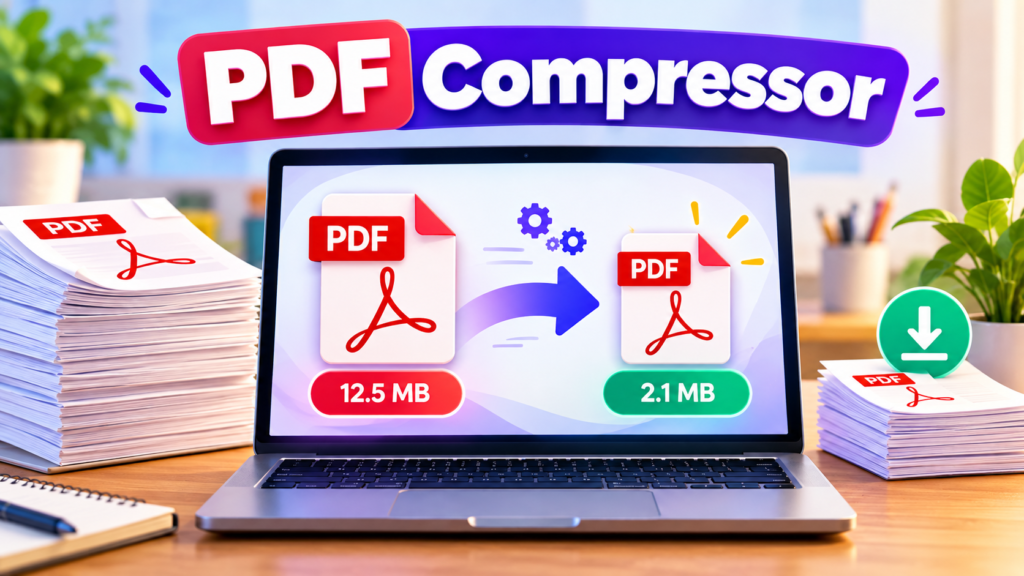
A PDF file can become difficult to upload, email, or share when its file size is too large. A PDF Compressor helps optimize PDF documents so they may be easier to store, upload, and share. Whether you are preparing a document for work, school, business, or an online application, checking your PDF file size before uploading can save time.
Our free PDF Compressor provides a simple way to process a PDF in your browser and compare the original file size with the processed file size. Upload a PDF, run the optimization, review the results, and download the processed document when it is ready.
PDF Compressor
Securely compress your PDF files directly in your browser.
Drag & drop your PDF here or browse files
Note: Browser-based compression optimizes PDF structure and object streams. Results vary based on original document composition.
What Is a PDF Compressor?
A PDF Compressor is a tool designed to reduce the storage size of a Portable Document Format (PDF) file. Depending on the method used, compression may remove unnecessary data, optimize internal PDF structures, or recompress images and other embedded resources.
Not every PDF can be reduced by the same amount. Some documents already contain optimized images and compressed data, so further processing may produce little or no reduction. In some cases, the resulting file may even be larger.
How to Use This PDF Compressor
Follow these simple steps to process your document:
- Open the PDF Compressor tool above.
- Select a PDF file from your computer, tablet, or mobile device.
- Click Optimize PDF to begin processing.
- Wait for the tool to display the original and processed file sizes.
- Review the size difference and check the status message.
- Click Download Processed PDF to save the resulting file.
- Open the downloaded document and verify that its pages display correctly.
For important documents, keep a copy of the original file until you have confirmed that the processed PDF meets your needs.
Benefits of Optimizing PDF Files
Easier File Sharing
Smaller PDF files can be easier to attach to emails or share through messaging platforms, provided they meet the destination’s file-size requirements.
More Convenient Uploads
Online applications and websites often impose maximum upload sizes. Optimizing a document may help it meet the required limit, although the result depends on the file.
Better File Management
Reducing the size of suitable documents can help save storage space when you manage many PDF files.
Simple Browser-Based Processing
This tool uses a browser-based PDF library to process files. The supplied code does not upload your selected PDF to a dedicated compression server. However, your website may use separate analytics or other third-party services, so avoid entering or processing confidential documents unless your setup has been reviewed.
Why Doesn’t Every PDF Become Smaller?
PDF files can contain compressed images, embedded fonts, text, vector graphics, forms, and other resources. If a PDF is already well optimized, saving it again may not significantly reduce its size.
This page’s tool performs basic PDF optimization. It does not provide advanced image recompression, adjustable image quality, or guaranteed size reduction. For image-heavy documents, a specialized compressor that recompresses embedded images may be more effective.
Always compare the original and processed sizes before deciding which file to keep.
Is PDF Compression Safe?
Choose a PDF tool that explains how it processes files and review its privacy practices before using it with sensitive information. For confidential documents, offline software may be a better choice.
After processing, open the resulting file and check the text, images, page order, forms, and any important formatting. Keep the original PDF as a backup.
Frequently Asked Questions
Is this PDF Compressor free?
Yes. The tool on this page is provided for free use, subject to your browser and device capabilities.
Will this tool always reduce PDF size?
No. Basic optimization does not guarantee a smaller file. The processed PDF may be smaller, unchanged, or larger than the original.
Can I use it on my phone?
You can try it in a modern mobile browser. Processing large PDFs may require more memory and may be slower on some devices.
Does the tool upload my PDF?
The supplied code processes the PDF in your browser rather than sending it to a dedicated compression server. Other website services may have separate data practices.
What happens if the PDF is password-protected?
Encrypted PDFs may fail to process. Use a document you are authorized to access and follow the document owner’s instructions.
Will the processed PDF look exactly the same?
Basic optimization is intended to preserve document content, but you should always open and inspect the output before using or sharing it.
Try the Free PDF Compressor
Select your PDF above, run basic optimization, and compare the resulting file size. If the processed file is not smaller, consider an advanced PDF compression tool designed to recompress images or reduce image resolution.
Helpful QR Code Resources
Learn more about QR codes, how they work, and how to use them effectively for websites, businesses, and everyday tasks.
- DENSO WAVE – QR Code Official Information — Discover QR code basics, features, and common applications.
- GS1 – 2D Barcodes — Learn about 2D barcodes and their use in product identification.
Explore More Free Tools
Discover free online tools for QR codes, text editing, PDF documents, and everyday tasks.
Explore All Tools →