
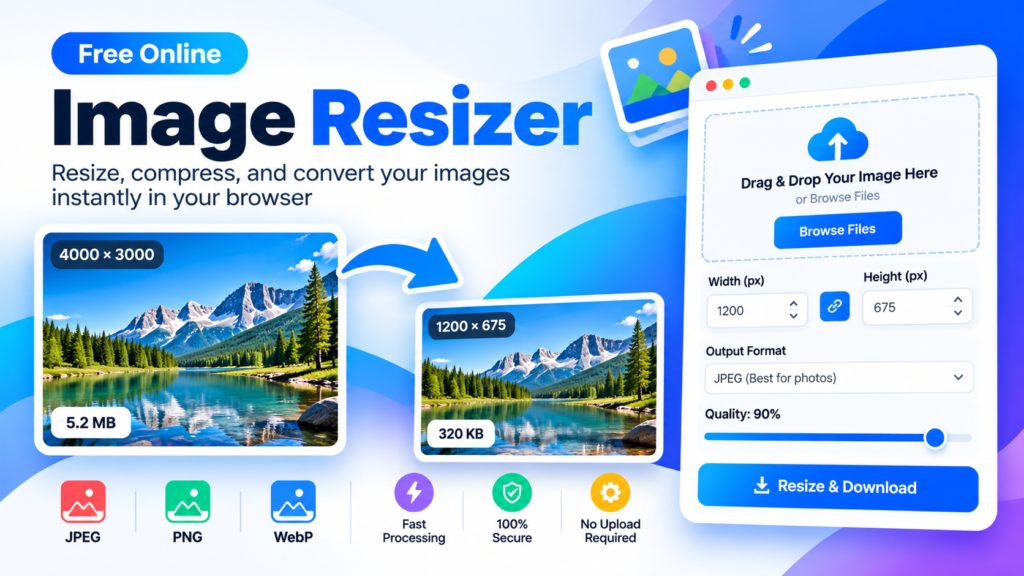
Looking for a simple way to change the dimensions of your pictures? The free Image Resizer on DigitalGrowthGuide.com helps you resize images online for different digital needs. Whether you are preparing images for a website, social media post, blog article, presentation, or personal project, resizing can help you achieve the dimensions you need.
Instead of installing desktop software for a simple task, you can use an online image resizer to adjust image width and height. Upload your image, choose your preferred dimensions, and download the resized version when processing is complete.
from pathlib import Path code = r”’Image Resizer Online
Resize images, keep their proportions, and export in JPEG, PNG, or WebP — right in your browser.
Drop your image here
or choose a file from your device
Resize settings
Presets use exact dimensions. They may change the original proportions.
Your resized image
File size depends on image dimensions, format, and quality. Resizing does not always make a file smaller. PNG exports do not use the quality slider.
Designed for local processing
Image resizing is performed in your browser. This tool code does not send your image to a processing server.
What Is an Image Resizer?
An image resizer is a tool that changes the pixel dimensions of a digital image. For example, you can resize an image from 2000 × 1500 pixels to 1200 × 900 pixels to make it smaller in dimensions.
Image resizing is useful when a website, online platform, document, or design project requires a particular image size. It can also help you prepare consistent images for galleries, product displays, blog posts, and digital presentations.
Keep in mind that image dimensions and file size are different. Reducing an image’s dimensions may reduce its file size, but the result depends on the image content, output format, and compression settings.
How to Resize an Image Online
Using an online image resizer is straightforward. Follow these general steps:
- Open the Image Resizer tool on DigitalGrowthGuide.com.
- Select an image from your device or drag and drop it into the upload area, if supported.
- Check the original image dimensions.
- Enter your preferred width and height in pixels.
- Enable the maintain aspect ratio option if you want to preserve the image’s original proportions.
- Preview the resized image, if a preview is available.
- Choose a supported output format and quality setting when available.
- Download the resized image to your device.
Always review the final image before using it in a project. This helps you confirm that the dimensions, proportions, and visual quality meet your requirements.
Why Is Image Resizing Important?
1. Prepare Images for Websites
Website images often need suitable dimensions for their layout. Resizing oversized images to more appropriate dimensions can help reduce unnecessary image data and may improve page loading performance. However, resizing alone does not guarantee a smaller file or faster page.
2. Create Social Media Graphics
Social media platforms use different image layouts for profile pictures, posts, stories, and banners. An image resizer can help you prepare graphics with dimensions that better fit your intended placement.
Check the current requirements of your chosen platform before resizing because recommended dimensions can change.
3. Improve Document Layouts
Images added to reports, presentations, assignments, and other documents may need specific dimensions to fit the available space. Resizing helps you prepare images before inserting them into your document.
4. Maintain Consistent Image Dimensions
If you are creating a gallery, portfolio, or collection of product images, consistent dimensions can make the layout look more organized. Depending on your design, you may also need to crop images to achieve a uniform shape.
What Is Aspect Ratio in Image Resizing?
Aspect ratio describes the relationship between an image’s width and height. A 1200 × 800 pixel image has a 3:2 aspect ratio.
Maintaining the aspect ratio helps preserve the image’s original proportions when resizing. If you change the width and height independently, the image may appear stretched or compressed.
For example, when reducing a 1200 × 800 pixel image to 600 pixels wide, maintaining the original aspect ratio produces a height of 400 pixels. This keeps the image’s proportions unchanged.
If your project requires exact dimensions, such as a square image, cropping may be more suitable than stretching the original image.
Does Resizing an Image Reduce File Size?
Resizing can reduce file size when the new image contains fewer pixels, but this is not guaranteed. File size also depends on the image format, visual complexity, transparency, and compression settings.
JPEG and WebP files can use lossy compression, which may reduce file size while affecting image quality. PNG is often useful for graphics that require transparency, although its file size can vary considerably.
For the best results, choose dimensions appropriate for your intended use and review the final file size and image quality.
Is It Safe to Use an Online Image Resizer?
Privacy depends on how an individual tool processes uploaded files. Some tools process images directly in the browser, while others send files to a remote server.
Before uploading confidential images, review the tool’s privacy information. If a tool processes images locally in your browser, the files can remain on your device during processing, subject to the page’s actual implementation and browser behavior.
Avoid uploading sensitive images to services whose privacy practices you have not checked.
Frequently Asked Questions
Is this image resizer free?
The DigitalGrowthGuide Image Resizer is intended as a free online utility. Check the page for any current usage restrictions.
Can I resize an image without stretching it?
Yes, if the tool offers a maintain aspect ratio option. This preserves the original proportions when you change one dimension.
Which image formats can I resize?
Supported formats depend on the tool implementation. Common browser image formats include JPEG, PNG, and WebP.
Does resizing reduce image quality?
Resizing can affect detail, especially when making an image significantly larger or smaller. Output format and compression quality can also affect the result.
Can I use resized images on my website?
Yes. Choose dimensions that suit your layout, review the visual quality, and use an appropriate file format. You should also add descriptive alternative text when the image conveys meaningful information.
Conclusion
The free Image Resizer on DigitalGrowthGuide.com can help you prepare images for websites, social media, documents, and creative projects. Adjust the dimensions to suit your needs, preserve the aspect ratio when appropriate, and review the result before downloading. Choosing suitable image dimensions and formats can help you create more consistent digital content.
Helpful Image Resizing Resources
Learn more about image dimensions, image optimization, and preparing images for websites with these useful resources.
- Google Developers – Optimize Images Learn techniques for improving image performance on websites.
- web.dev – Learn About Images Explore image formats, responsive images, and web image best practices.
- MDN Web Docs – HTML Images Understand how images are displayed and used on websites.
Explore More Free Tools
Discover more useful online tools for your everyday tasks.
Explore All Tools →