
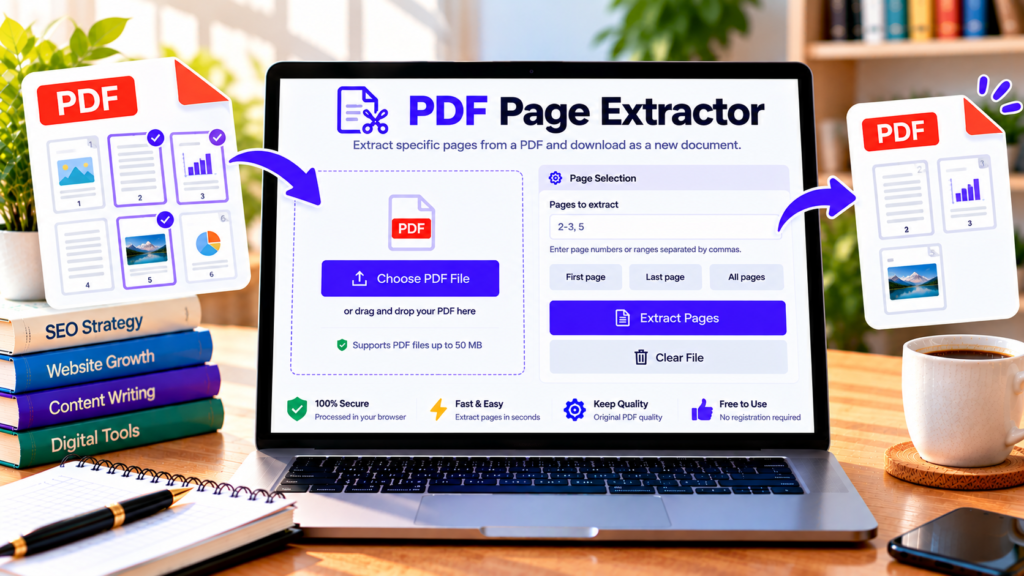
Need only a few pages from a large PDF document? A PDF page extractor helps you select the pages you need and save them as a separate PDF file. Instead of sharing an entire report, manual, or presentation, you can extract specific pages and create a smaller document in just a few steps.
Our free online PDF Page Extractor lets you choose individual page numbers or ranges, such as pages 1–3 or pages 2, 5, and 8. You can then download the selected pages as a new PDF directly from your browser.
Free PDF Page Extractor
Extract specific pages from a PDF and download them as a new document.
What Is a PDF Page Extractor?
A PDF page extractor is a tool that copies selected pages from an existing PDF into a new document. It is useful when you want to keep particular sections of a file without including every page.
For example, a 50-page report might contain only five pages that are relevant to a meeting. You can extract those pages and share them as a separate PDF. The original document remains unchanged.
Page extraction is different from splitting every page into separate files. An extractor can collect selected pages into one new PDF, while a page-by-page splitter may create a separate file for each page.
How to Extract Pages from a PDF Online
Follow these steps to create a new PDF from selected pages:
- Choose a PDF file: Upload the document you want to use.
- Check the page count: The tool displays the number of pages in the selected PDF.
- Enter page numbers: Type individual page numbers or ranges into the selection field.
- Use a quick selection: Select First page, Last page, or All pages when appropriate.
- Extract the pages: Click Extract Pages to create a new PDF containing your selection.
- Download the result: Use the download link to save the extracted document.
- Review the PDF: Open the new file and confirm that it contains the correct pages.
For example, entering 1-3, 5, 8 selects pages 1, 2, 3, 5, and 8.
Key Features of Our PDF Page Extractor
Extract individual pages
Select specific pages when you need only certain forms, diagrams, sections, or reference material from a larger document.
Extract page ranges
Choose consecutive pages using a range such as 4-9. This is convenient for extracting chapters, report sections, or groups of related pages.
Combine selected pages into one PDF
The selected pages are placed into a single output PDF in ascending page order. This helps you create a focused document without keeping unrelated pages.
Quick page-selection options
Choose the first page, last page, or all pages with the preset buttons. These shortcuts can make common extraction tasks faster.
Browser-based processing
The tool is designed to process the selected PDF in your browser and does not intentionally upload your document to our server. This is convenient for routine document tasks, but you should follow your organization’s security requirements for confidential files.
Simple download workflow
Once extraction is complete, download the new PDF and store or share it as needed.
Who Can Benefit from a PDF Page Extractor?
Students: Extract selected chapters, exercises, or study notes from large course materials.
Teachers: Create separate files containing particular worksheets, reading assignments, or examination pages.
Office professionals: Share only relevant pages from reports, contracts, forms, or meeting documents.
Researchers: Collect important pages from reference materials and research documents.
Home users: Extract specific pages from manuals, guides, and other PDF files for easier access.
Tips for Accurate PDF Page Extraction
Check the page count before entering your selection. Printed page numbers inside a document may differ from the PDF’s actual page positions because of cover pages, introductions, or unnumbered sections.
Use commas to separate individual pages and hyphens to indicate ranges. For example, 2, 4-6, 9 selects pages 2, 4, 5, 6, and 9. Review the output before sharing it.
Some encrypted or damaged PDFs may not open correctly. Digital signatures and certain advanced document features may also be affected when pages are copied into a new PDF.
If you want to divide a document into separate files, use a Split PDF tool. If you need to reduce a file’s size, a PDF Compressor may be more appropriate.
Frequently Asked Questions
Is this PDF Page Extractor free?
Yes. The tool is designed for free use in your browser without installing desktop software.
Can I extract multiple pages at once?
Yes. Enter individual page numbers and ranges, such as 1-3, 5, 8, to collect multiple pages into one PDF.
Does extracting pages change my original PDF?
No. The tool creates a separate PDF file and does not intentionally modify your original document.
Can I extract all pages?
Yes. Use the All pages preset to select every page and create a new copy as a PDF.
Are my PDF files uploaded to a server?
The tool is designed to process the document locally in your browser and does not intentionally upload it to our server. For highly confidential documents, follow your organization’s data-handling requirements.
Conclusion
Our free PDF Page Extractor makes it easy to collect selected pages from a larger PDF. Upload your document, enter page numbers or ranges, extract the pages, and download your new PDF. Always review the output before sharing or storing it.
Explore More Free PDF Tools
Extract, split, merge, and manage your PDF documents with our online tools.
Explore All Tools →External Resources
Learn more about PDF page extraction and document processing.
-
pdf-lib Documentation
Learn how JavaScript can create PDF documents and copy selected pages.
-
PDF.js Documentation
Explore the browser-based PDF library used to read document information.
-
Adobe Acrobat — Organize PDF Pages
Read about organizing, extracting, and managing pages in PDF documents.