
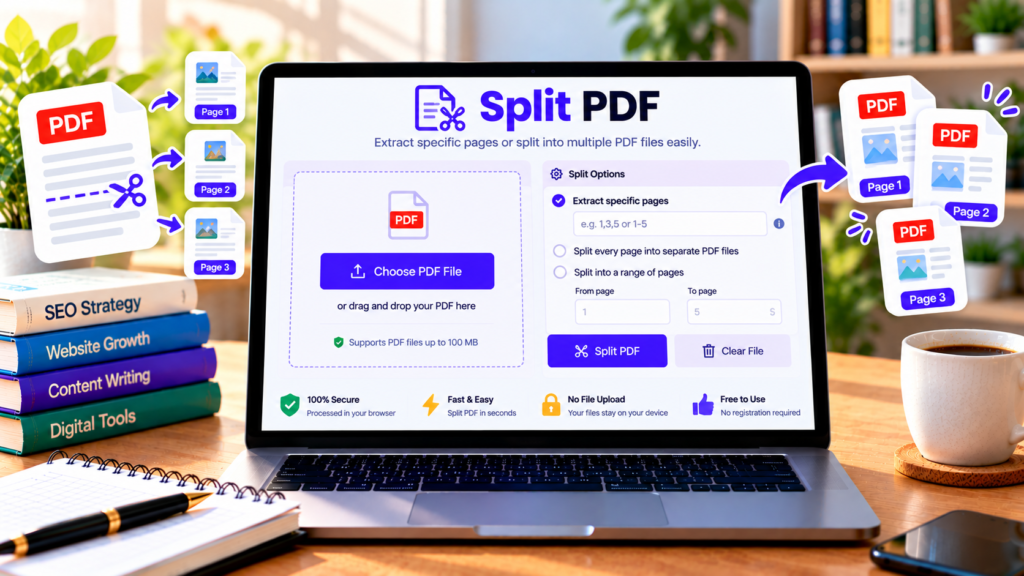
Need to separate a few pages from a large PDF document? A Split PDF tool helps you extract selected pages or divide a document into smaller PDF files. Instead of installing desktop software, you can use an online PDF splitter to organize your documents quickly and conveniently.
Our free online Split PDF tool lets you upload a PDF, select the pages you need, or split every page into a separate file. It processes the document in your browser, making it useful for everyday document-management tasks.
Free Split PDF Tool
Separate PDF pages or extract selected page ranges in your browser.
What Is a PDF Splitter?
A PDF splitter is a tool that divides one PDF document into smaller PDF files. You might use it to separate chapters from a report, extract a few pages from a manual, or divide a long document into individual pages.
For example, if a PDF contains 20 pages but you only need pages 4–7, you can extract that range into a new PDF. You can also split every page into its own PDF file when you need individual pages for separate tasks.
Splitting a PDF is different from compressing a PDF. A splitter separates pages, while a compressor attempts to reduce file size.
How to Split a PDF Online
Follow these steps to separate your PDF pages:
- Choose a PDF file: Upload the PDF you want to split.
- Check the page count: The tool displays the number of pages in the selected document.
- Choose a split method: Extract specific page ranges or split every page into a separate PDF.
- Enter page numbers: For range extraction, use a format such as
1-3, 5, 8-10. - Start splitting: Click the Split PDF button to create the output files.
- Download your files: Use the download links displayed after processing.
Check the page numbers carefully before splitting, especially when working with a long report or scanned document.
Key Features of Our Split PDF Tool
Extract selected pages
Choose the specific pages you need without keeping the entire document. This is helpful when sharing only a particular chapter, form, or section of a report.
Split every page into a separate PDF
Create an individual PDF for each page. This option is useful when pages must be stored, shared, or processed separately.
Select page ranges
Enter individual page numbers and ranges to identify the pages you want. For example, 1-3, 5 selects pages 1, 2, 3, and 5.
Browser-based processing
The tool is designed to process PDF files locally in your browser and does not intentionally upload your document to our server. It is convenient for routine document tasks, although you should follow your organization’s security requirements for confidential files.
Simple download options
After processing, each output PDF appears with its own download link, so you can save the files you need.
Who Can Benefit from a PDF Splitter?
Students: Extract selected chapters, assignment pages, or study notes from larger PDF documents.
Teachers: Separate worksheets, reading materials, or individual activities from a combined file.
Office professionals: Extract relevant pages from reports, forms, and business documents before sharing them.
Researchers: Separate specific sections of long papers or reference documents for easier organization.
Home users: Divide manuals, guides, and other documents into smaller, more manageable files.
Tips for Splitting PDF Files Correctly
Always confirm the page numbers before processing. PDF page numbering may differ from the printed page numbers shown inside a document, particularly when the file contains a cover page or introductory pages.
If you need several consecutive pages, use a range such as 3-7. For separate pages, use commas, such as 2, 5, 9. Review the generated files before sending them to someone else.
Large PDFs may take longer to process and can use considerable browser memory. If a file fails to load, try a smaller document or check whether the PDF is password-protected.
If you need to combine PDF documents rather than separate pages, use a PDF merging tool instead. If the file is too large to share, a PDF compressor may be more suitable.
Frequently Asked Questions
Is this Split PDF tool free?
Yes. The tool is designed for free browser-based PDF splitting without requiring desktop software.
Can I extract specific pages from a PDF?
Yes. Enter the page numbers or ranges you want, such as 1-3, 5, 8-10, and generate a new PDF containing those pages.
Can I split every PDF page separately?
Yes. Choose the option to split every page into a separate PDF file.
Does splitting a PDF change the original file?
No. The tool creates new PDF files and does not intentionally modify your original file.
Are my PDF files uploaded to a server?
The tool is designed to process files locally in your browser. It does not intentionally send your PDF to our server. For highly sensitive documents, follow your organization’s data-handling requirements.
Conclusion
Our free Split PDF tool helps you extract selected pages or separate a PDF into individual files. Upload your document, choose your splitting method, enter page ranges when needed, and download the resulting PDFs. Always review the output before sharing or storing your files.
Explore More Free PDF Tools
Manage your PDF files with our other free online tools.
Explore All Tools →External Resources
Learn more about PDF files and browser-based PDF processing.
-
pdf-lib Documentation
Learn about creating, modifying, and extracting pages from PDF documents using JavaScript.
-
PDF.js Documentation
Explore the JavaScript PDF viewer and document-processing library.
-
Adobe Acrobat — Organize PDF Pages
Learn about organizing and managing pages in PDF documents.