
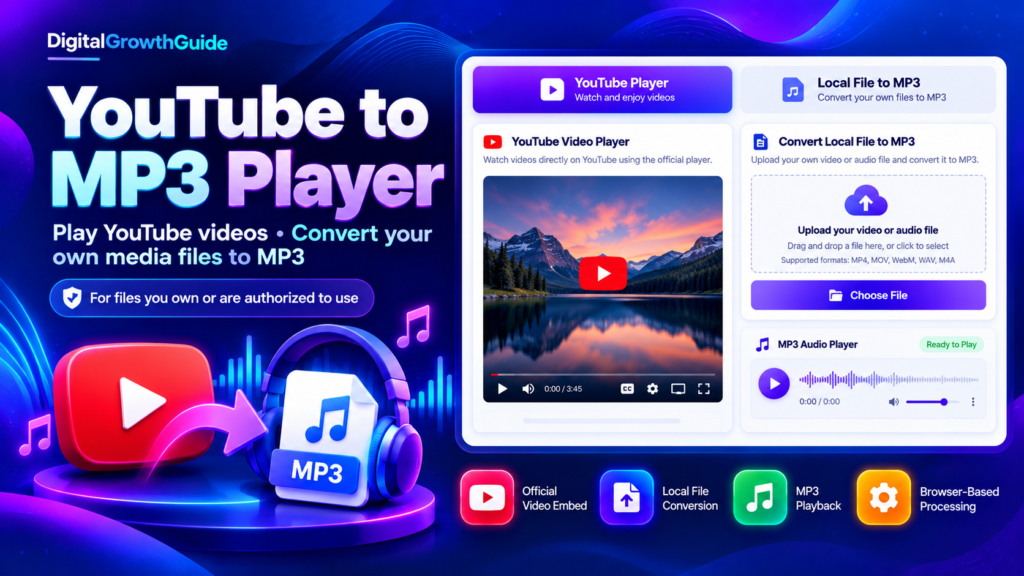
A youtube to mp3 player page brings together video playback and audio file tools in one convenient place. With DigitalGrowthGuide, you can watch YouTube videos using the official embedded player and convert your own authorized video or audio files into MP3 format. This gives you a simple way to manage media playback without confusing YouTube streaming with file conversion.
The two features serve different purposes. YouTube links open videos through the official YouTube player, while MP3 conversion works with files that you upload from your device and own or have permission to process.
Official YouTube Player
Watch YouTube videos using the official embedded player. (Note: Direct downloading or MP3 extraction from YouTube is strictly prohibited and not supported.)
Convert Your Own Media Files to MP3
Upload a video or audio file (MP4, MOV, WebM, WAV, M4A) you own to convert it to MP3. Processing happens entirely in your browser securely.
Drag & Drop media file here, or click to Choose File
What Is a YouTube to MP3 Player?
A youtube to mp3 player combines an embedded video player with an MP3 audio workflow. You can paste a supported YouTube video link to watch it on the page, or upload a media file from your device to convert it into an audio format.
A YouTube embed is not the same as downloading a video. The official player allows visitors to view supported YouTube content within an embedded player while following YouTube’s platform requirements. The local converter is a separate feature for media files you are authorized to use.
How to Use the YouTube Video Player
The YouTube video player feature is designed for convenient playback:
- Copy the URL of a YouTube video.
- Paste the link into the YouTube URL field.
- Select the Load Video option.
- Watch the video through the official embedded player.
- Use the available YouTube playback controls.
The tool should accept supported YouTube URL formats and display a clear error if the link is invalid. It does not extract audio from YouTube, create an MP3 download from a YouTube URL, or bypass the platform’s download restrictions.
Convert Your Own Video Files to MP3
A local video to mp3 player works with media files selected directly from your computer or mobile device. If you own a video or have permission to convert it, you can upload a supported file and extract its audio using browser-based processing.
Depending on the file format and browser support, the conversion engine may process formats such as MP4, MOV, WebM, WAV, and M4A. Actual support depends on the codecs included in the conversion engine. Check the available format list before choosing a file.
The conversion process should display the filename, file size, progress and a clear result message. After successful processing, you can preview the MP3 and download the converted file.
Browser-Based MP3 Converter: How It Works
A browser-based youtube to mp3 player utility can use media processing technology such as FFmpeg WebAssembly to decode supported local files and encode their audio into MP3 format.
This process can take time depending on the source file, file size, device performance and available memory. Larger video files may require more processing resources, so a maximum file size is a useful safeguard.
The conversion should happen locally whenever possible, with no media upload to the website’s server. Always use content you own or are legally allowed to convert. Review the conversion tool’s supported formats and privacy information before uploading a file.
MP3 Audio Player and Download
After a successful conversion, the MP3 audio player lets you listen to the resulting audio. Typical controls include Play, Pause, volume adjustment, playback progress and a time display.
You can listen to the result before downloading it. A Download MP3 button should appear only after a valid conversion has finished. If processing fails or the source format is unsupported, the tool should explain what went wrong instead of providing an empty or incorrect download.
Is It Possible to Convert YouTube Videos Directly to MP3?
The YouTube video player and local MP3 converter are separate features. This youtube to mp3 player uses YouTube URLs for official embedded playback only. It does not extract audio or offer direct MP3 downloads from YouTube links.
For YouTube content, use the download options officially provided by the platform when available. For audio conversion, upload your own media or content for which you have the necessary permission. Read the [suspicious link removed] before using or processing platform content.
Frequently Asked Questions
Can I play YouTube videos on this page?
Yes. Supported YouTube links can be opened in the official embedded player of a youtube to mp3 player.
Can I download an MP3 from a YouTube URL?
No. YouTube links are used for official playback only. The MP3 conversion feature accepts authorized local media files.
Can I convert my own MP4 video to MP3?
Yes, when the uploaded file uses a supported format and its audio can be decoded by the conversion engine.
Is my uploaded file sent to a server?
The intended browser-based youtube to mp3 player workflow processes files locally. Check the site’s privacy notice and actual implementation before uploading confidential files.
Final Thoughts
The youtube to mp3 player brings together official video playback and a separate local MP3 conversion workflow. Use YouTube’s embedded player to watch videos, and use the file converter for media you own or are authorized to process. Always check format compatibility, review the resulting audio, and use downloads responsibly.
Related DigitalGrowthGuide Tools
Explore more free online tools for media, files and digital workflows.
- Image Format Converter — Convert images between supported formats.
- Image Resizer — Resize images for different purposes.
- UTM Link Builder — Create trackable campaign URLs.
- QR Code Generator — Generate QR codes for supported links and text.
Official Media and Developer Resources
- YouTube Terms of Service — Review YouTube’s content use and download restrictions.
- YouTube IFrame Player API — Learn about official embedded video playback.
- FFmpeg Official Website — Explore media processing and conversion technology.
- MDN HTML Audio Element — Learn how browser-based audio playback works.