
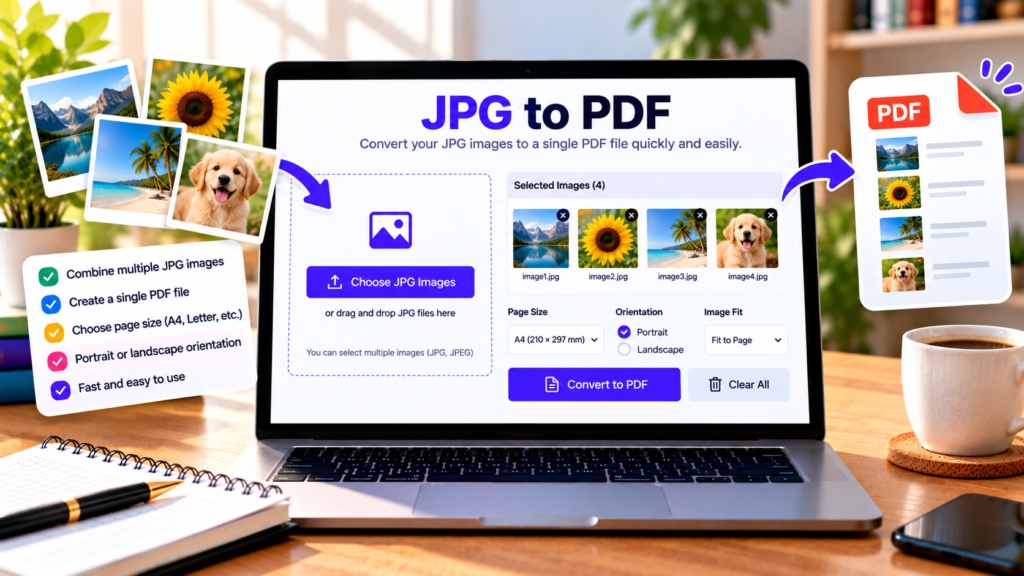
Need to combine photos or scanned images into a single document? A JPG to PDF converter makes it easy to turn JPG and JPEG images into a convenient PDF file. Instead of sharing several separate image files, you can combine them into one document that is easier to store, send, print, and organize.
Our free online JPG to PDF tool lets you select multiple images, arrange their order, choose a page size and orientation, and download a single PDF. The conversion runs in your browser, so you can create your document without installing desktop software.
Professional JPG to PDF Converter
Convert and combine your JPG/JPEG images into a single professional PDF document instantly in your browser.
Drag & Drop JPG Images Here
or click the button below to browse your device
Supports JPG, JPEG (Multiple files allowed)What Is a JPG to PDF Converter?
JPG, also known as JPEG, is a common image format used for photographs, screenshots, and scanned documents. PDF is a document format designed to present content consistently across many devices and applications.
Converting JPG images to PDF is useful when you want to combine several pictures into one file. For example, you might turn photos of receipts into a single document, organize scanned pages, or prepare images for sharing with a colleague.
A PDF can also make a group of images easier to print and distribute as one file.
How to Convert JPG to PDF Online
Follow these steps to create your PDF:
- Choose your images: Select the JPG or JPEG files you want to combine. You can add multiple images.
- Arrange the order: Review the image list and drag images into the sequence you want.
- Choose a page size: Select A4, Letter, or Fit to Image, depending on your document needs.
- Select orientation: Choose portrait or landscape for standard page sizes.
- Set the margins: Pick no margin, a small margin, or a larger margin.
- Choose image quality: Select Standard, High, or Maximum quality according to your needs.
- Convert to PDF: Click Convert to PDF and wait for the browser to create your document.
- Download your file: The generated PDF will be saved as
jpg-to-pdf.pdf.
Check the final document before sharing it to make sure the pages appear in the correct order and the images are readable.
Key Features of Our JPG to PDF Tool
Combine multiple JPG images
Bring several JPG or JPEG images together into one PDF instead of sending individual files separately.
Arrange image order
Organize your pages before conversion. This is especially useful for scanned documents, receipts, and photo collections that need to follow a particular sequence.
Choose page size and orientation
Use A4 or Letter for standard document layouts, or choose Fit to Image to create pages based on image dimensions. Portrait and landscape orientation options help you adapt standard pages to your content.
Adjust margins and quality
Choose margins that suit your document. The image-quality setting helps you balance image detail against PDF file size, although actual results depend on the original images and browser processing.
Browser-based conversion
The tool is designed to process your selected images locally in your browser. It does not intentionally upload the images to our server, making it convenient for everyday conversion tasks.
When Should You Convert JPG to PDF?
Students can combine photographed notes, diagrams, or assignment pages into one document.
Office professionals can organize receipts, scanned paperwork, and reference images for easier sharing.
Teachers and educators can group image-based worksheets or visual materials into a single file.
Photographers and designers can prepare image collections for review or create simple PDF presentations.
Home users can combine personal photographs or scanned pages into a document that is easier to store and print.
Tips for Better JPG to PDF Results
Use clear, high-resolution images when the document needs to be printed. Make sure all pages follow the correct order before converting them, particularly when working with scanned documents.
Choose a page size that matches your intended use. A4 is common for many documents, while Letter is often used in the United States. Fit to Image is helpful when you want page dimensions to follow the original image proportions.
If your images are very large, conversion may take longer or use significant browser memory. Try smaller batches if your device struggles to process the files.
Remember that converting images into a PDF does not automatically make text inside photographs searchable or editable. That generally requires optical character recognition (OCR).
Frequently Asked Questions
Is this JPG to PDF converter free?
Yes. You can use the basic browser-based tool to combine JPG images into a PDF without installing a desktop application.
Can I combine multiple JPG files into one PDF?
Yes. Select multiple supported images, arrange them in the desired order, and convert them into one PDF document.
Can I change the order of images?
Yes. Drag the image entries into your preferred order before starting the conversion.
Does converting JPG to PDF reduce image quality?
The result depends on the selected quality setting, original image quality, and processing. Choose Maximum quality when preserving detail is more important than file size.
Are my images uploaded to a server?
The tool is designed to process images in your browser and does not intentionally upload them to our server. For highly confidential documents, follow your organization’s security requirements.
Conclusion
Our free JPG to PDF converter helps you combine image files into a single, organized document. Upload your JPG images, arrange the pages, choose your settings, and download the resulting PDF directly from your browser.
Explore More Free PDF and Image Tools
Resize images, compress PDF files, and manage your documents with our free online tools.
Explore All Tools →External Resources
Explore these resources to learn more about converting JPG images to PDF and handling files in your browser.
-
Adobe Acrobat – Convert JPG to PDF
Learn about an alternative way to convert JPG images into PDF documents.
-
MDN Web Docs – File API
Understand how web applications access and handle files in the browser.
-
jsPDF Documentation
Explore the JavaScript library used to create PDF documents in web applications.