Need to turn a PDF document into image files? A PDF to JPG converter lets you transform PDF pages into JPG images that are easy to preview, share, insert into presentations, and use in design projects.
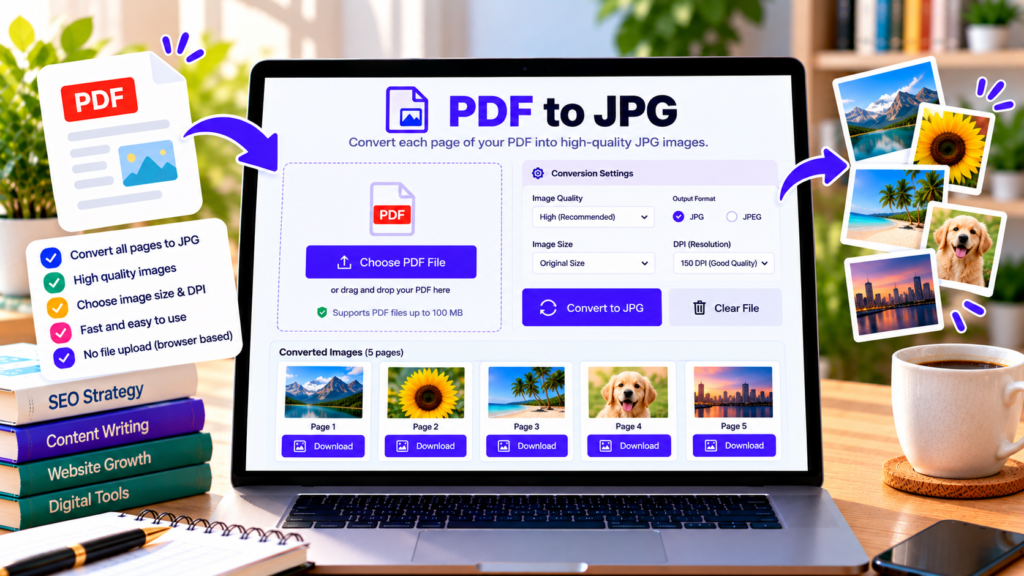
Our free online PDF to JPG tool converts the pages of a PDF into individual image files directly in your browser. You can select all pages or specify a page range, preview the converted images, download individual JPGs, or package the results into a ZIP file.
Free PDF to JPG Converter
Convert PDF pages into JPG images online, right in your browser.
What Is a PDF to JPG Converter?
PDF is a document format designed to preserve page layout, while JPG (also called JPEG) is a widely supported image format used for photographs and graphics.
A PDF to JPG converter renders each selected PDF page as an image. This can be useful when you need to share a page as a picture, add a document page to a presentation, or use a visual in a design project.
The conversion creates image files rather than editable text documents. If you need to edit the words in a PDF, a PDF-to-Word tool may be more suitable.
How to Convert PDF to JPG Online
Follow these steps to convert your document:
- Upload your PDF: Choose the PDF file from your device.
- Check the page count: The tool displays the number of pages in the document.
- Select your pages: Convert every page or enter a range such as
1-3, 5. - Choose image quality: Select a rendering scale appropriate for your needs.
- Start conversion: Click Convert to JPG and wait while the selected pages are processed.
- Preview the images: Review the generated JPG previews.
- Download your results: Download individual images or select Download All as ZIP to save them together.
For large documents, converting a smaller page range first can help you check the image quality and processing time.
Key Features of Our PDF to JPG Tool
Convert PDF pages into JPG images
Turn each selected page into a separate JPG image. This is useful when you need individual pages instead of a complete PDF document.
Convert selected page ranges
You do not always need to convert an entire document. Enter individual page numbers or ranges to process only the pages you want.
Choose image quality
The rendering scale affects image dimensions and detail. Higher settings can produce larger images and require more browser memory. Choose a setting that balances clarity and file size.
Preview and download images
Review the generated images before downloading them. Each converted page has its own download link, so you can save only the images you need.
Download all images as ZIP
When converting several pages, a ZIP file helps keep the output images together in one download instead of saving them individually.
Browser-based processing
The tool is designed to process your PDF locally in your browser and does not intentionally upload your document to our server. This is convenient for routine conversions, although you should follow your organization’s security requirements for confidential files.
Who Can Benefit from PDF to JPG Conversion?
Students: Convert lecture notes, diagrams, or selected PDF pages into images for presentations and study materials.
Teachers: Prepare individual worksheet pages or visual examples for classroom presentations.
Office professionals: Turn report pages into images for slides, emails, and internal documents.
Designers: Import PDF pages into image-based workflows, layouts, or visual references.
Bloggers and website owners: Prepare document-page previews for tutorials, guides, and informational content.
Tips for Better PDF to JPG Results
Choose a higher rendering scale when fine details or small text need to remain readable. Keep in mind that a larger image may require more storage and take longer to process.
Convert only the pages you need when working with a long document. This can reduce processing time and memory usage.
Review the downloaded images before sharing them. If a PDF contains very large pages or many pages, your browser or device may struggle to process everything at once. Try a smaller page range if conversion fails.
Remember that converting a PDF page to JPG produces a flat image. Text inside the resulting image will not normally be selectable or editable as text.
Frequently Asked Questions
Is this PDF to JPG converter free?
Yes. The tool is designed for free use in your browser without requiring desktop conversion software.
Can I convert only selected PDF pages?
Yes. Choose the page-range option and enter page numbers or ranges, such as 1-3, 5.
Can I download all converted images together?
Yes. Use Download All as ZIP after the images have been generated.
Does PDF to JPG conversion reduce quality?
The result depends on the rendering scale, the source PDF, and the content of each page. Higher rendering scales generally create larger images with more detail.
Are my PDF files uploaded to a server?
The tool is designed to process documents in your browser and does not intentionally send them to our server. For highly confidential documents, follow your organization’s data-handling requirements.
Conclusion
Our free PDF to JPG converter makes it easy to turn PDF pages into individual images. Upload a document, select the pages you need, choose the rendering quality, preview the results, and download your JPG files individually or together in a ZIP archive.
Explore More Free PDF and Image Tools
Convert, resize, and manage your files with our free online tools.
Explore All Tools →External Resources
Learn more about PDF processing and browser-based file conversion.
-
PDF.js Documentation
Learn about the JavaScript library used to render PDF pages in the browser.
-
MDN — HTMLCanvasElement.toBlob()
Understand how browser canvas content can be exported as image files.
-
Adobe Acrobat — PDF to JPG
Explore an alternative workflow for converting PDF documents into images.