
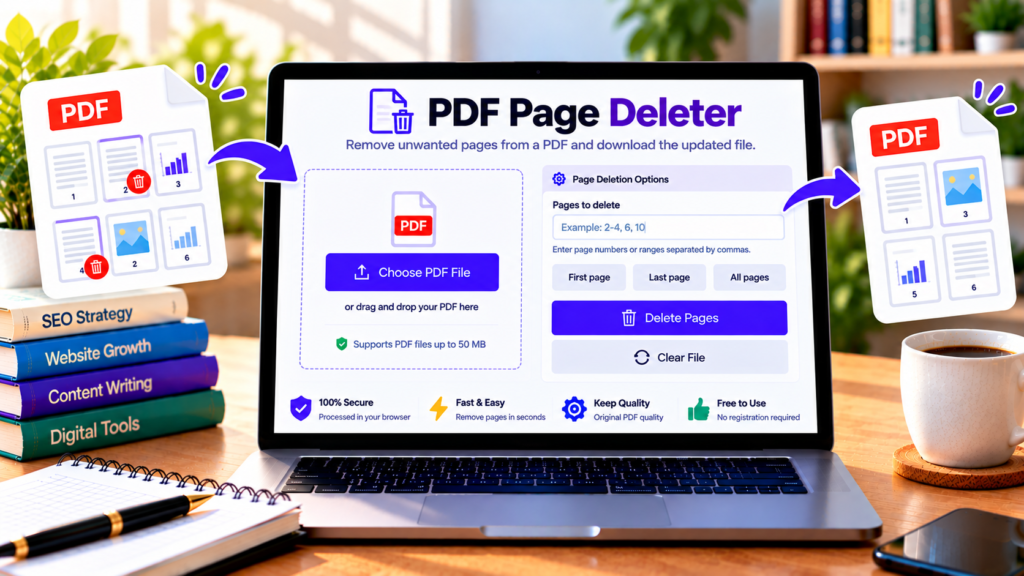
Need to remove a blank page, duplicate page, or unnecessary section from a PDF? Our free PDF Page Deleter helps you remove selected pages and save the remaining content as a new PDF document. You can enter individual page numbers or ranges, making it useful for reports, assignments, scanned documents, ebooks, and business files.
You don’t need to install desktop software to try the tool. Upload a PDF, specify the pages you want to delete, and download the updated document directly from your browser.
Free PDF Page Deleter
Remove unwanted pages from a PDF and download a clean, updated document.
Select a PDF from your device or drag and drop it here.
PDF files only · Maximum file size: 50 MB
Your PDF is processed in your browser by this tool. Do not close the tab while the file is being processed. Avoid using this tool for password-protected or confidential files unless you are comfortable with your browser environment.
How to Delete Pages from a PDF
Follow these simple steps to remove unwanted pages:
- Upload your PDF: Select a PDF file from your device.
- Enter page numbers: Type the pages you want to remove in the page selection box.
- Use page ranges: Enter a range such as
2-4to select pages 2, 3, and 4, or combine selections like2-4, 6, 9. - Check your selection: Confirm that the numbers match the pages you want to delete.
- Delete and download: Select the delete button to create and download the updated PDF.
The tool keeps at least one page in the resulting document. If you enter an invalid page number or try to remove every page, it will ask you to correct your selection.
Why Use a PDF Page Deleter?
PDF files are convenient for sharing documents, but sometimes they contain content that you don’t need. A PDF page remover can help you prepare a cleaner document without recreating the entire file.
Remove blank pages
Scanned documents and exported files can sometimes contain blank pages. Remove those pages to make the final document easier to read.
Delete duplicate or unnecessary pages
If a report contains duplicate material or an outdated section, you can remove the pages you no longer want to include.
Prepare documents for sharing
Before sending a report, presentation, or study document, remove irrelevant pages so recipients can focus on the information that matters.
Select individual pages or ranges
You can delete a single page or several pages in one operation. For example, 3, 7, 10-12 selects pages 3, 7, 10, 11, and 12.
Is It Safe to Delete PDF Pages Online?
This tool is designed to process the PDF in your browser instead of uploading the document to a dedicated processing server. That can help reduce the need to transmit the file elsewhere, although your website’s hosting, scripts, and other services still matter when evaluating privacy.
For sensitive documents, use a trusted device and browser, and avoid processing confidential information if you are unsure about the environment. The tool does not replace secure document-handling practices.
Always keep a copy of your original PDF until you have checked the updated file. Some encrypted or unusually structured PDFs may not be supported.
Does Deleting Pages Reduce PDF File Size?
Removing pages can reduce the file size because the resulting document no longer contains the deleted pages. However, the amount of space saved depends on the content in those pages and the way the PDF is structured. If your main goal is to reduce the size of a PDF, a dedicated PDF compression tool may be more suitable.
PDF Page Deleter vs. PDF Page Extractor
These tools solve different problems. A PDF Page Deleter removes selected pages and saves the remaining pages together as a new document. A PDF Page Extractor creates a new document containing the pages you choose to keep. Use the deleter when you want to remove unwanted pages from an existing document, and use the extractor when you want a separate PDF containing only specific pages.
Frequently Asked Questions
Can I delete multiple PDF pages at once?
Yes. Enter individual page numbers, ranges, or a combination of both. For example, 2-4, 8 selects pages 2, 3, 4, and 8.
Can I delete the first or last page?
Yes. You can use the page-selection shortcuts to select the first page or the last page, then create the updated PDF.
Does this tool work without installing software?
The tool runs in a compatible modern browser and uses JavaScript libraries to process PDFs. An internet connection may be needed to load those libraries.
Will deleting pages change the remaining content?
The tool removes selected pages rather than intentionally rewriting the content of the remaining pages. However, complex PDF structures and interactive elements may not always be preserved perfectly, so review the downloaded document.
Is the PDF Page Deleter free?
Yes, the tool is offered free to use on this page, subject to its file-size limit and browser compatibility.
Conclusion
The free PDF Page Deleter offers a straightforward way to remove unwanted pages from a PDF without rebuilding the document from scratch. Upload your file, select the pages you want to delete, and download the updated PDF. For best results, double-check your page selection and open the finished document before sharing it.
Helpful PDF Resources
- pdf-lib Documentation – Learn how JavaScript can modify PDF documents and remove pages.
- Official pdf-lib Website – Explore PDF creation and modification features.
- Adobe Acrobat PDF Resources – Learn about PDF page management options.