
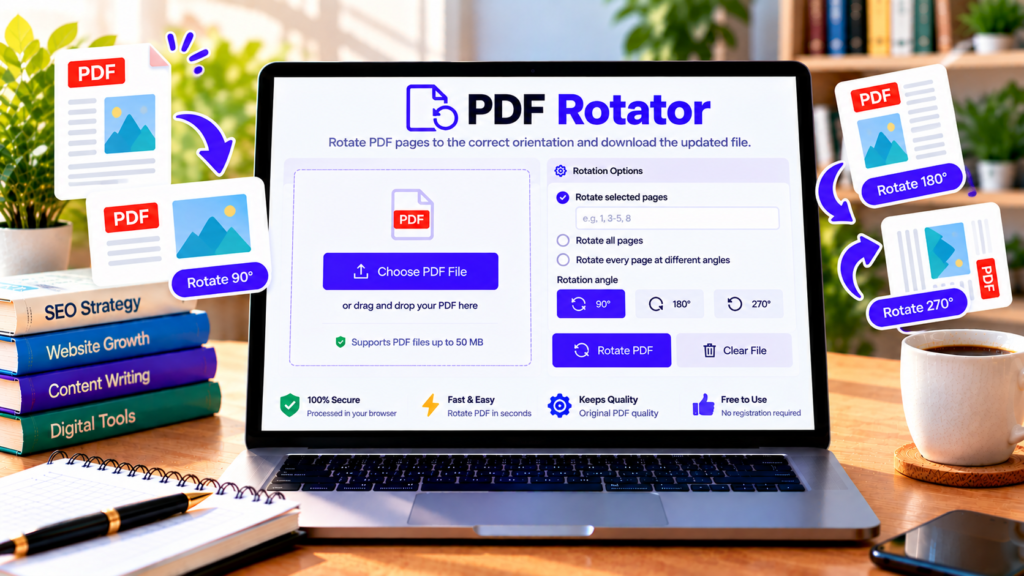
Have you ever opened a PDF and found that one or more pages are sideways or upside down? This can happen with scanned documents, photos saved as PDFs, and files combined from different sources. Our free PDF Rotator helps you correct page orientation directly in your browser.
With this online PDF rotation tool, you can rotate pages by 90, 180, or 270 degrees. Choose specific pages or rotate the entire document, then download the updated PDF. There is no need to install a separate desktop application to use the tool.
Free PDF Rotator Online
Rotate PDF pages to the correct orientation and download your updated file.
Choose a file or drag and drop it here.
PDF only · Maximum 50 MB
Enter page numbers or ranges. Leave empty to rotate all pages.
Your file is processed in your browser. Keep the page open until your download starts.
How to Rotate PDF Pages Online
Follow these simple steps to correct your document’s orientation.
- Upload your PDF: Select a PDF file from your computer or compatible device.
- Select the pages: Enter individual page numbers or ranges, such as
1-3, 5, 8. Leave the selection empty to rotate all pages. - Choose a rotation angle: Select 90°, 180°, or 270° clockwise.
- Rotate the document: Click the Rotate PDF button and wait for processing to finish.
- Download your file: Save the rotated PDF and open it to verify the page orientation.
For example, if only page 4 is sideways, enter 4 to rotate that page without changing the orientation of the other pages.
Features of Our PDF Rotator
Rotate individual PDF pages
Not every page in a document needs the same adjustment. The PDF Rotator lets you select particular pages, helping you correct individual scanned pages while leaving the remaining pages unchanged.
Rotate an entire PDF
If all pages have the wrong orientation, you can rotate the complete document with one selection. This is useful for presentations, scanned notes, manuals, and reports.
Choose from three rotation angles
Different orientation problems require different adjustments.
- 90 degrees: Turns a page clockwise by a quarter turn.
- 180 degrees: Turns a page upside down.
- 270 degrees: Turns a page clockwise by three-quarters of a turn, equivalent to 90 degrees counterclockwise.
Check the resulting document after rotation, especially when pages have different original orientations.
Keep your workflow simple
The tool is designed to run in a modern browser. It creates a new downloadable PDF rather than requiring you to manually edit every page. The maximum file size supported by this version is 50 MB, although available device memory and PDF complexity may affect processing.
Is It Safe to Rotate a PDF Online?
This PDF Rotator is designed to process files locally in your browser instead of uploading the PDF to a dedicated processing server. This can reduce the need to send your document elsewhere, but it does not automatically guarantee complete privacy. Your browser, website configuration, and third-party scripts are also relevant.
For confidential documents, use a trusted device and avoid online processing if you cannot verify the security of your environment. Keep your original PDF until you have checked the rotated copy.
Password-protected files and some complex PDFs may not be supported. If a document fails to process, try a compatible, unencrypted copy.
Does Rotating a PDF Reduce Its Quality?
Rotating a PDF page changes its orientation rather than intentionally converting its contents into a lower-resolution image. Text and vector content can remain sharp. However, compatibility with certain PDF features can vary, so always inspect the downloaded document before sharing or printing it.
PDF Rotator vs. PDF Page Extractor
A PDF Rotator changes the orientation of selected pages or the entire document. A PDF Page Extractor creates a separate PDF containing the pages you choose. If you need to correct sideways pages, use the rotator. If you need to save only selected pages, use the extractor instead.
Frequently Asked Questions
Can I rotate only one page in a PDF?
Yes. Enter the page number you want to rotate, choose an angle, and process the file.
Can I rotate all pages at once?
Yes. Leave the page selection empty to rotate every page in the uploaded PDF.
Can I rotate a PDF by 90 or 180 degrees?
Yes. Choose 90°, 180°, or 270° clockwise using the rotation options.
Do I need to install software?
No separate desktop installation is required. The tool runs in a compatible browser, although an internet connection may be needed to load its JavaScript library.
Is the PDF Rotator free?
Yes. This tool is offered free on this page, subject to its file-size limit and browser compatibility.
Conclusion
The free PDF Rotator makes it easier to correct sideways and upside-down pages without rebuilding your document. Upload your PDF, select the pages and rotation angle, and download the updated file. For the best results, open the finished PDF and confirm that each page displays correctly before using or sharing it.
Helpful PDF Resources
- pdf-lib PDFPage Documentation – Reference for drawing text on PDF pages.
- Official pdf-lib Website – Learn about creating and modifying PDF documents with JavaScript.
- Adobe Acrobat: Headers and Footers – Learn about adding page numbers and other information to PDFs.