
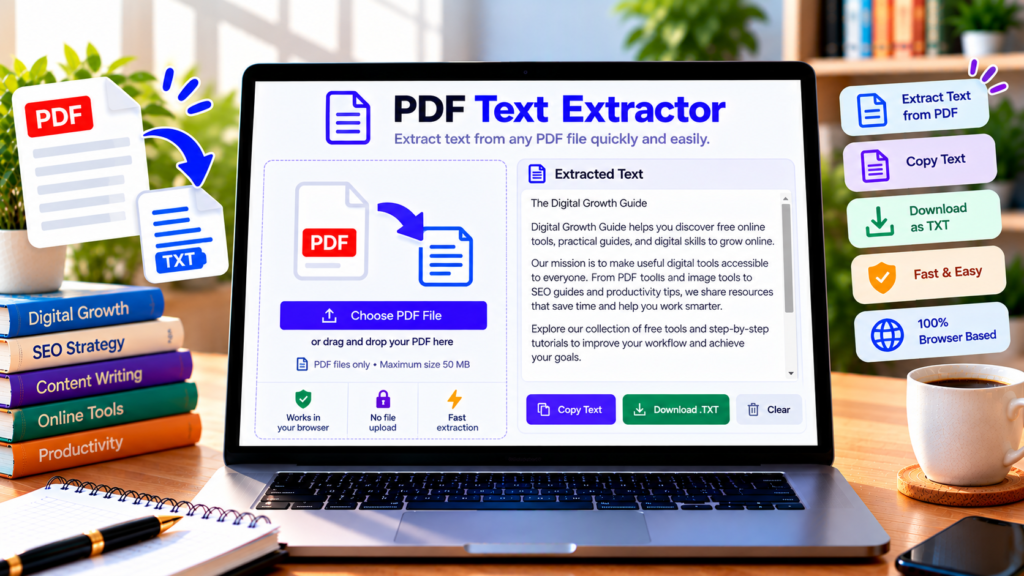
Need to copy text from a PDF without retyping the entire document? A PDF Text Extractor helps you retrieve selectable text from PDF files and use it in notes, reports, research, or other documents. Instead of copying content page by page, you can extract the available text and save it as a plain-text file.
DigitalGrowthGuide’s PDF Text Extractor is designed to process PDF files in your browser. Select a document, extract its text, review the results, and copy or download the content.
Free PDF Text Extractor
Extract selectable text from PDF documents and copy or download it as a text file. Processing is designed to happen in your browser.
Note: This tool extracts selectable text. Scanned PDFs containing only page images require OCR and may not produce text here. Password-protected or damaged PDFs may not be supported.
How to Extract Text from a PDF Online
Follow these simple steps to extract text from a PDF document.
Step 1: Select your PDF file. Open the PDF Text Extractor and choose a PDF from your computer or drag the file into the upload area. The tool supports files up to the displayed 50 MB limit.
Step 2: Extract the text. Click the Extract Text button. The tool reads the document’s pages and collects available text.
Step 3: Review the result. The extracted content appears in the text box. Review the text to check whether the content, line breaks, and page order meet your needs.
Step 4: Copy or download. Use Copy Text to copy the extracted content, or choose Download TXT to save it as a plain-text file on your device.
For important documents, compare the extracted text with the original PDF. Complex layouts, columns, tables, and unusual fonts may affect the reading order or spacing.
What Is a PDF Text Extractor?
A PDF Text Extractor is a tool that reads text stored in a PDF document and makes it available as ordinary text. PDFs can contain selectable text, scanned page images, or a mixture of both.
When a PDF contains selectable text, a browser-based extraction tool can often retrieve it without changing the original document. This is useful when you want to quote a passage, search content, prepare study notes, or reuse text in a word processor.
Text extraction does not necessarily preserve the original visual layout. Fonts, page designs, images, columns, and precise spacing may not transfer into a plain-text result.
Features of Our PDF Text Extractor
Simple interface: Select a PDF and extract its text using a straightforward workflow.
Browser-based processing: The tool is designed to process the selected file locally in your browser, rather than intentionally uploading it to a separate document-processing server.
Copy extracted text: Copy the resulting text for use in notes, emails, research, or other applications.
Download as TXT: Save the extracted content in a plain-text format that can be opened by many text editors and word processors.
Page-by-page extraction: The tool reads document pages in sequence and includes page markers in the output to help you identify where the text came from.
Clear and restart: Remove the current selection and output before processing another PDF.
Can You Extract Text from a Scanned PDF?
Scanned PDFs often contain pictures of pages rather than actual selectable text. A standard text extractor may return little or no content from these documents because there is no embedded text layer to read.
To extract words from a scanned document, you generally need Optical Character Recognition (OCR). OCR analyzes page images and attempts to recognize the characters. Results can vary depending on image quality, handwriting, page rotation, language, and scan resolution.
If this tool returns no text, try selecting text in your PDF reader to check whether the document contains a text layer. If the pages are only images, use an OCR-enabled tool instead.
Is It Safe to Extract Text Online?
Privacy is important when processing contracts, reports, or personal documents. This tool is designed for browser-based processing, which can help keep the selected PDF on your device. However, users should verify the deployed implementation and its external dependencies before processing highly confidential files.
Only extract content you are authorized to access and reuse. Text extraction does not grant permission to redistribute copyrighted material or confidential information.
Frequently Asked Questions
Is this PDF Text Extractor free?
The tool is intended to be available free of charge. Check the page for its current file-size limit and usage details.
Can I convert PDF to TXT?
Yes. Extract the available text and download it as a plain-text TXT file.
Why is the extracted text out of order?
PDFs may use multiple columns, tables, separate text blocks, or complex layouts. The reading order may differ from the visual order on the page.
Does it work with password-protected PDFs?
Password-protected files may require the correct password before their contents can be read. This implementation does not include a password-entry workflow.
Extract Text from Your PDF
Use DigitalGrowthGuide’s PDF Text Extractor to retrieve selectable text, review the results, and save the content as a TXT file. For scanned PDFs or complex layouts, verify the output carefully and use OCR when text recognition is required.
Helpful PDF Text Extraction Resources
- PDF.js Official Documentation – Learn how PDF.js loads and processes PDF documents.
- PDF.js API Reference – Reference for PDF document and page text extraction APIs.
- MDN Clipboard API – Learn about copying text to the clipboard in a browser.